


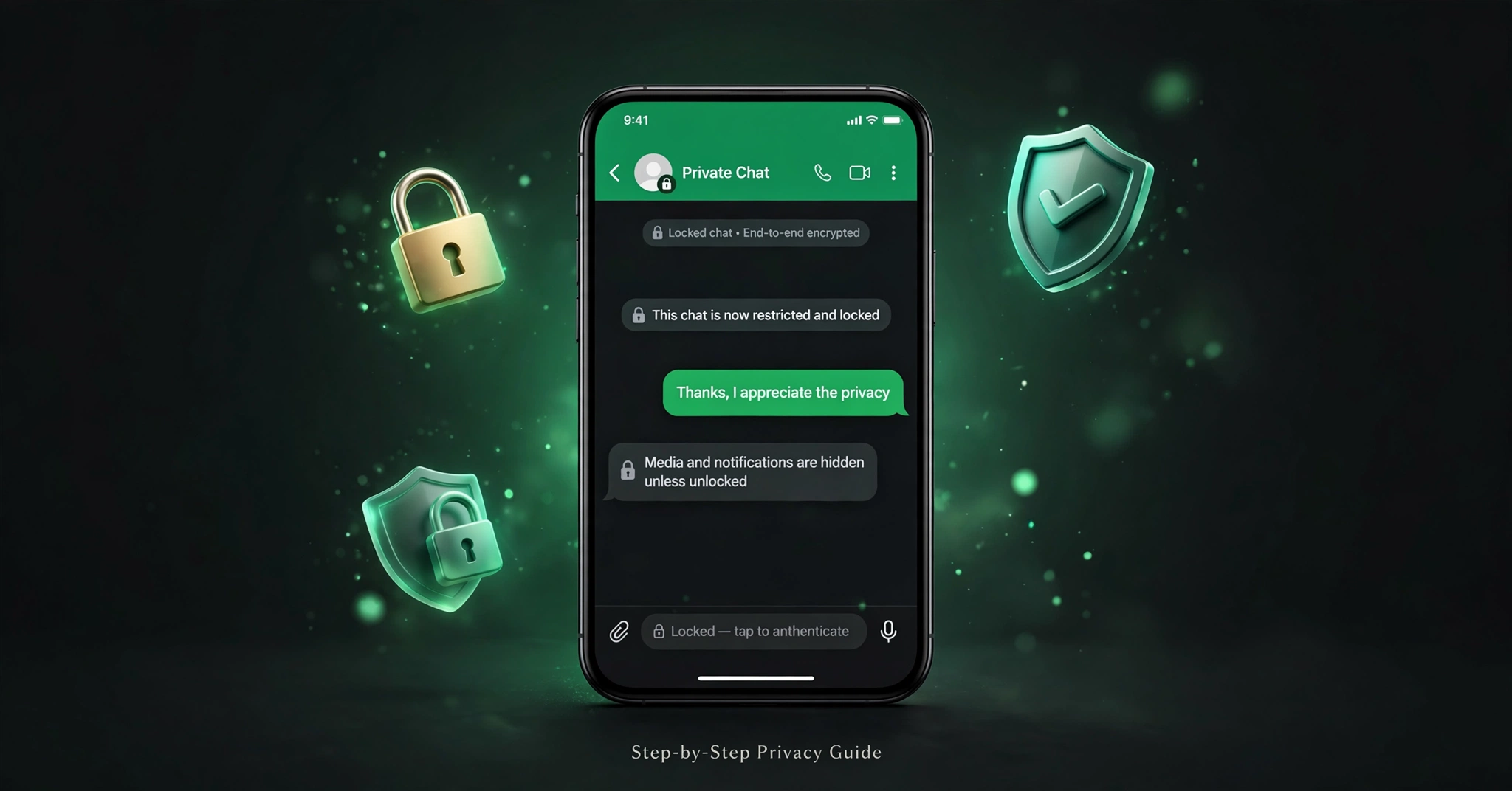
To enable Restricted Chat in WhatsApp, open the individual chat, tap the contact name to open Chat Info, scroll down to Restricted Chat and turn it on.
This feature is officially called Advanced Chat Privacy. Some beta builds show it as Restricted Chat, some as Advanced Chat Privacy – both are the same setting. Once enabled, WhatsApp stops that chat’s media from auto-saving to your gallery, blocks chat export, hides the conversation on linked devices like WhatsApp Web and Desktop, and disables Meta AI inside that thread. As of May 2026, it is only available in WhatsApp Beta for Android, build 2.26.39.11 and newer, and on iPhone via the official TestFlight beta. It is disabled by default and must be enabled per chat.
What is Restricted Chat in WhatsApp?
Restricted Chat is WhatsApp’s new primary-phone-only privacy mode, listed as Advanced Chat Privacy in WhatsApp’s Help Center.
It does not hide your chat from your main chat list. Instead, it controls where the content of that chat can go after it is delivered. WhatsApp built it for sensitive conversations where you want to prevent the thread from being exported, saved automatically to a camera roll, or opened on a companion device. When you turn it on, the restriction applies to both participants in the conversation, not just to you. WhatsApp confirms this with a system message that both sides can see.
What Happens When You Enable Restricted Chat?
Enabling Restricted Chat applies four restrictions to that specific conversation immediately, for both people.
First, media stops auto-saving. Photos and videos you receive in that chat remain visible inside WhatsApp, but they no longer save automatically to your phone’s gallery. You can still save them manually if you choose to.
Second, chat export is disabled. According to WABetaInfo’s beta coverage, the Export Chat option in Chat Info becomes unavailable for restricted threads, which prevents creating a.txt file or forwarding the full history outside WhatsApp.
Third, the chat is removed from all companion devices. It will not appear on WhatsApp Web, WhatsApp for Windows or Mac, or any linked phone or tablet. It becomes readable only on the primary phone where it was restricted. This is the most significant change for most users.
Fourth, Meta AI is turned off inside that thread. You cannot invoke Meta AI or use AI-assisted features in a restricted conversation.
It does not delete your previous messages, it does not block voice or video calls, and it does not block screenshots or screen recordings. View Once media blocks screenshots – Restricted Chat does not.
Requirements to Use Restricted Chat
You need the beta version to see this setting. If you are on the stable public version of WhatsApp from the Google Play Store or Apple App Store, you will not find Restricted Chat in Chat Info, and that is expected.
Who Can Access It Right Now?
As of this update, the feature is live for a limited group of beta testers. On Android, you need WhatsApp Beta distributed through Google Play, specifically builds around 2.26.39.11 and newer where WhatsApp started testing the feature. On iPhone, you need access via the official TestFlight beta. Even on the correct build, WhatsApp enables it server-side in batches, so some beta accounts receive it later than others.
If you are on stable, the best approach is to wait for the stable rollout. Joining the beta does not guarantee immediate access, but it is the only official way to get it early.
How to Get the Feature Early
On Android, open the WhatsApp listing in Google Play and tap Join under Join the Beta. On iPhone, you need an open slot in the WhatsApp TestFlight program, which is frequently full.
Do not install modified APKs, GBWhatsApp, FMWhatsApp, or any third-party build that claims to unlock Restricted Chat. Those apps are not from Meta, they are not end-to-end encrypted, and using them can lead to data theft or a permanent account ban. As noted in the WhatsApp Help Center guidance on unofficial apps, only builds from official stores should be used.
How to Enable Restricted Chat in WhatsApp – Step-by-Step
You have to enable it individually for each chat you want to protect. There is no global toggle to restrict all chats at once, which is intentional for privacy.
On Android, open WhatsApp and go to the individual conversation you want to restrict. Tap the contact name at the top of the screen to open Chat Info. Scroll down past the disappearing messages and encryption section. You will see an option labeled Restricted Chat or Advanced Chat Privacy depending on your beta version – both refer to build 2.26.39.11’s new privacy control. Tap into it, read the on-screen explanation of the four limitations, and switch it on. WhatsApp will place a system message inside the chat confirming advanced privacy was enabled. If you have previously followed a guide on how to stop WhatsApp from saving photos to your gallery, you will notice that setting is now enforced automatically for this chat.
On iPhone, the flow is the same. Open the chat, tap the contact name for Chat Info, scroll down to Restricted Chat or Advanced Chat Privacy, and enable it. In some iOS TestFlight builds the label still says Advanced Chat Privacy. The placement can shift slightly during beta testing, but it remains inside Chat Info near the bottom.
Can you enable it for group chats? Not yet. In the current beta phase, WhatsApp has limited Restricted Chat to one-to-one individual chats only. You will not see the option inside group info, and that is the intended behavior for now.
How to Turn Off Restricted Chat in WhatsApp
Disabling follows the same path. Open the restricted conversation, tap the contact name to open Chat Info, scroll down to Restricted Chat, and turn the toggle off.
WhatsApp will post another system message that advanced privacy was turned off. Once disabled, media auto-save follows your general WhatsApp settings again, the Export Chat option returns, and the conversation reappears on your linked devices like WhatsApp Web. The change applies to both participants immediately.
Why Is Restricted Chat Not Showing?
If you followed the steps and still don’t see it, it’s almost always one of these reasons.
You are on the stable public version, not the beta, which is the most common cause. Your beta build is outdated – update to the latest beta from the Play Store or TestFlight. Your account hasn’t been flagged in the server-side rollout yet, even though you are on build 2.26.39.11. You are looking inside a group chat where it is not yet supported. Or you are looking on WhatsApp Web or Desktop, where restricted chats are intentionally hidden and the setting never appears.
If you just joined the beta, give it a few hours after updating. WhatsApp often needs time to enable new privacy flags on your account after a beta install.
A practical way to confirm it’s working once you do enable it: send a photo in that restricted thread and check your phone gallery. Then open Chat Info and check if Export Chat is disabled. If both are blocked, the restriction is active.
Read More: 11 Best Phones of 2026 Our Top Picks Tested and Ranked
Restricted Chat vs Locked Chat: What’s the Difference?
People confuse these two because both are privacy features, but they solve different problems.
Locked Chat is about access on your own device. When you lock a chat, WhatsApp moves it to a separate Locked Chats folder that requires your fingerprint, face, or passcode to open. It’s designed for when someone has your unlocked phone in hand.
Restricted Chat is about control after delivery. It stays visible in your main chat list. It does not hide the chat, it limits what can be done with it – whether media saves to your gallery, whether the thread can be exported as a file, whether it shows up on WhatsApp Web over your shoulder, and whether Meta AI can be used inside it.
If you want to hide a conversation from someone borrowing your phone, use Locked Chats. If you want to keep a sensitive conversation from being saved or spread outside your primary phone, use Restricted Chat. On beta builds you can use both protections on the same conversation, which gives you hiding plus anti-export protection.
FAQs About WhatsApp Restricted Chat
Does the other person know I enabled restricted chat?
Yes. WhatsApp adds a visible system message inside the conversation that says Advanced Chat Privacy was turned on. Both sides see it and both sides are bound by the same four restrictions.
Does restricted chat block WhatsApp Web completely?
No. It only removes that specific conversation from linked devices. Your WhatsApp Web and Desktop apps continue to work normally for all other chats. The restricted thread becomes primary-phone-only.
Does it prevent screenshots or screen recording?
No. Restricted Chat does not block screenshots or screen recordings. That protection only applies to View Once photos and videos. Someone can still screenshot a restricted chat.
Can I still call the person in a restricted chat?
Yes. Voice and video calls work normally. The restriction only covers media auto-save, chat export, linked device visibility, and Meta AI.
Will enabling restricted chat delete my old messages?
No. All previous messages, photos, and files remain in the chat. Only future handling changes.
Can the other person disable a restriction I enabled?
Yes. Either participant can turn it off from Chat Info. When one person disables it, both see the system message that it was turned off.
