


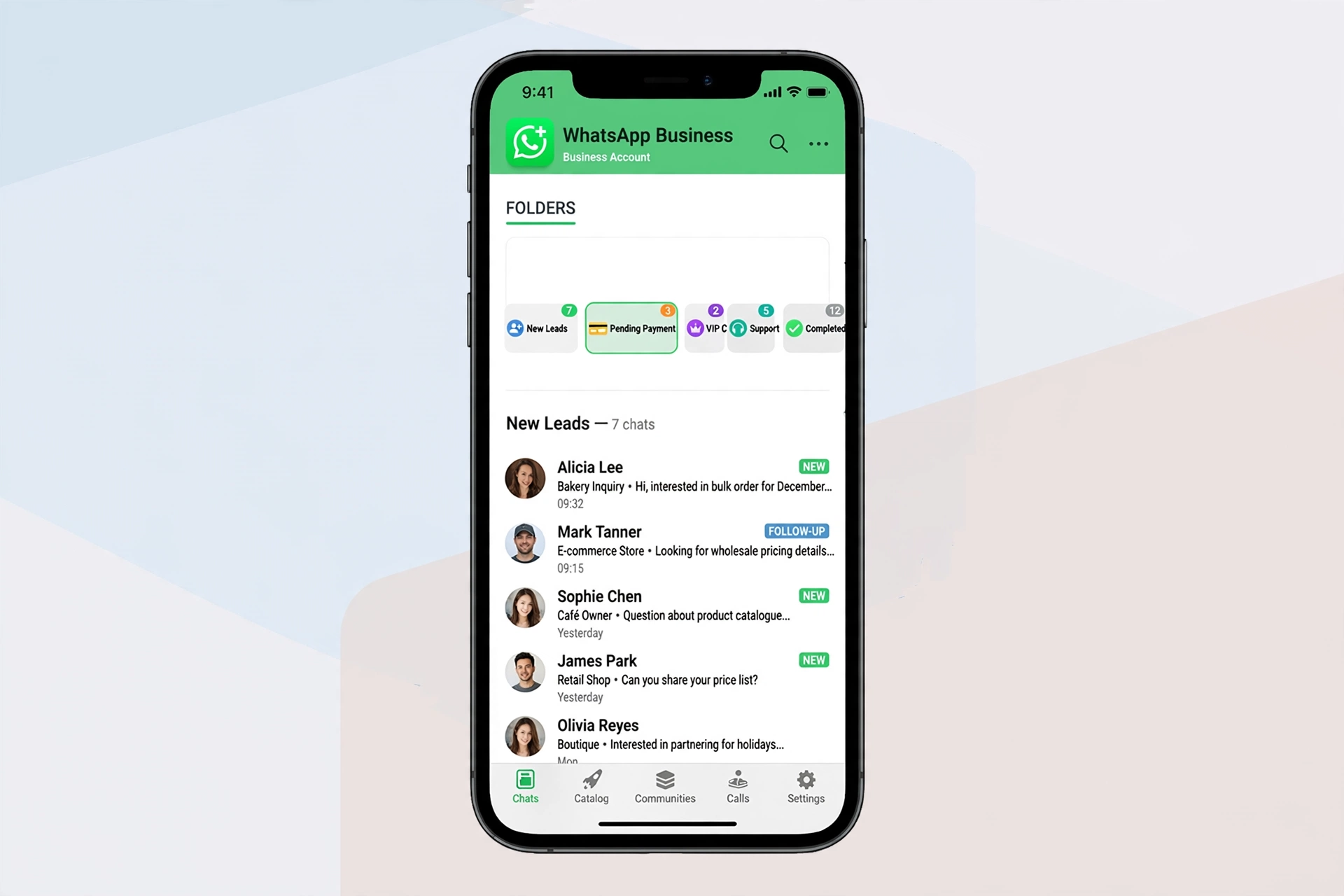
No, WhatsApp Business App does not offer custom message folders. It gives you Filters and Labels that function exactly like folders. You create a label, tag a chat with it, and filter your inbox by that label to view it as a dedicated folder. If you need true, auto-sorting folders that sync for your whole team, you need the WhatsApp Business Platform, which is the API version, connected to a shared team inbox.
I tested this flow on both Android and iOS. The free app you download from the app store is the WhatsApp Business App, owned by Meta. It only has Filters and Labels. The WhatsApp Business Platform is a separate, paid API product that requires a Business Solution Provider. This guide covers how to build a reliable folder system with what you have today, and when to upgrade.
WhatsApp Business Message Folders: How to Organize Chats When There Are No Folders
Fifty chats a day is manageable. Three hundred is not. New inquiries, payment confirmations, support tickets, and delivery updates all land in one endless list. Important customers slip down, you spend more time scrolling than replying, and response time suffers. That is why so many business owners search for message folders. They want a way to separate conversations by what needs to happen next.
WhatsApp Business does not call them folders, but the functionality is there. Once you understand how Meta designed it, you can turn that single list into a clean pipeline.
Does WhatsApp Business Have Message Folders?
No, the WhatsApp Business App does not have custom folders you can create from scratch.
What it has is Filters and Labels. At the top of your Chats tab you will see All, Unread, and Groups. Tap the filter icon and you will see all your labels listed. That filtered view is your folder. According to the WhatsApp Help Center, labels are designed to help you organize and quickly find chats and messages. Instead of moving a chat out of your main inbox, you tag it and then isolate all chats with that tag when you need to focus.
WhatsApp Business Labels vs. Folders: What’s the Difference?
Labels are the folder system. That is the simplest way to internalize it.
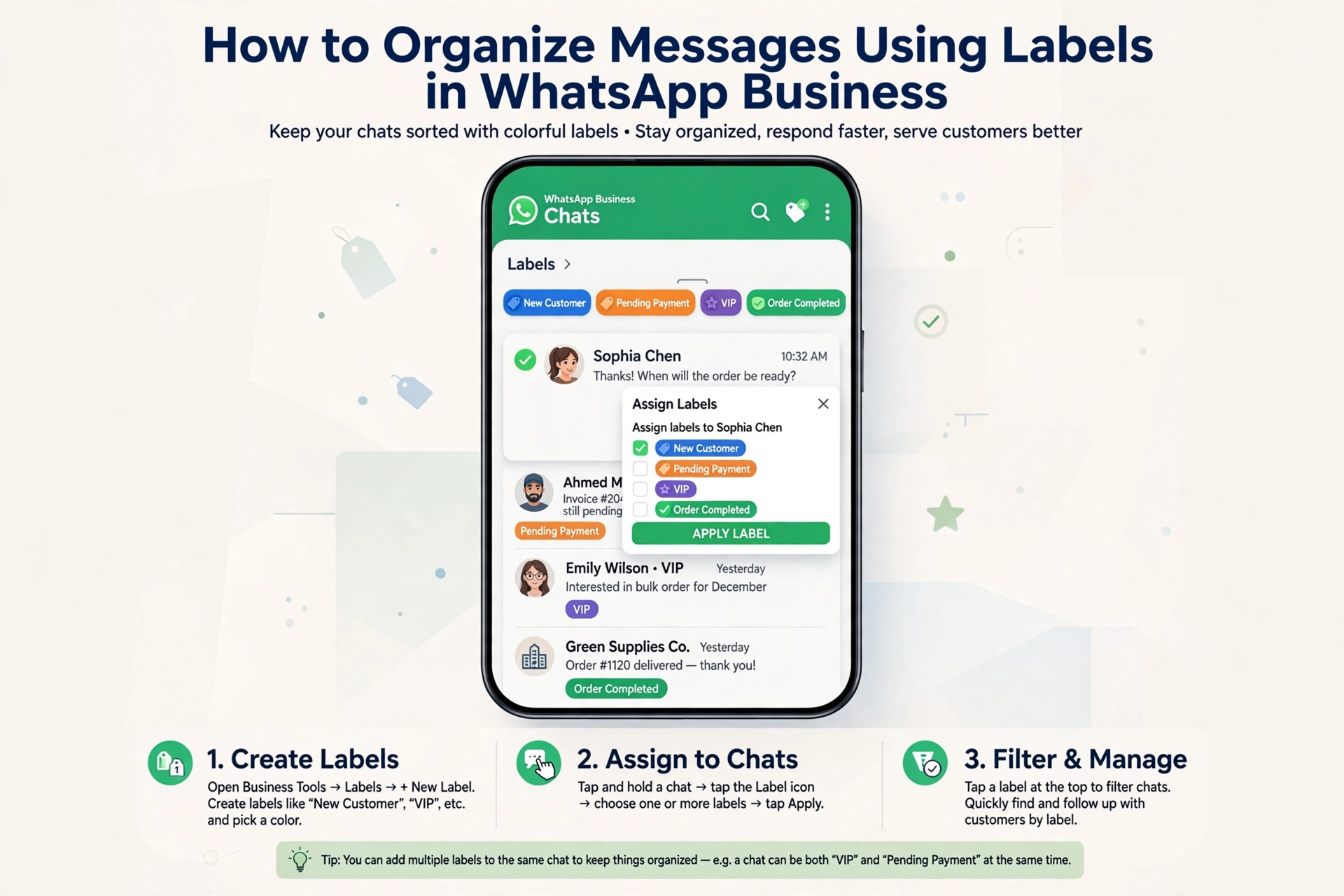
A traditional folder moves an item from one place to another. A label categorizes it where it is. When you label a conversation as Pending Payment, you are not relocating it. You are adding a tag. Later, when you want to see every pending payment, you filter by that label and the app shows you only those conversations. It feels like opening a folder, but it is more powerful.
WhatsApp starts you with five defaults: New Customer, New Order, Pending Payment, Paid, and Order Complete. You can edit them, delete them, and create your own with custom colors. You can have up to 20 labels, and a single chat can carry multiple labels at once. A conversation can be both VIP and Delivery Issue, which you could never do with rigid folders.
Why Meta Uses Labels Instead of Folders
The label model matches how customer conversations actually behave. A chat rarely fits into one neat bucket. A VIP customer might also have an urgent support request. With folders you would have to choose one place to put it. With labels you can apply both tags and find that conversation through either filter. Your main inbox stays chronological, which is what customers expect, while you get flexible ways to slice it by intent.
How to Create Message Folders in WhatsApp Business App Using Labels
You can build a folder system that holds up under pressure in about ten minutes, as long as you plan your labels before you touch the app.
Start with your revenue flow, not with the feature. Write down how a customer actually moves through your business. For my e-commerce test store, the flow is: New Inquiry > Order Placed > Paid > Shipped > Delivery Issue > Completed. For a service business I manage, it is: New Lead > Qualified > Quote Sent > Follow-up > Won / Lost. Those steps become your folder names. When your labels mirror money moving through the business, your team will actually use them.
Now build them. Open WhatsApp Business, go to Settings, then Business Tools, then Labels. That is where your folders live. Tap Add Label, give it a short, scannable name, and assign a color with meaning. The system that sticks for most teams is green for completed or paid, yellow for waiting states like Awaiting Reply, and red for anything that needs immediate attention like Payment Failed or Urgent. After a week you will read the inbox by color alone.
Assigning is simple. From your chat list, long-press a conversation and tap the label icon at the top. Or open the conversation, tap More, and choose Add label. The second method is better when you are already inside replying. Remember you can apply multiple labels to one chat, so a wholesale customer who just paid can be both Wholesale and Paid.
To use your new folders, go to your Chats tab, tap the filter icon next to search, and select a label. The app instantly narrows to only chats with that label. That is your folder view. Tap All to return to the full inbox. Make it a habit to remove a label when its job is done. If a chat stays labeled as both New Order and Order Complete, your filters lose trust.
Why Labels Are Not Enough: Limitations You Will Hit
Labels work beautifully when you are solo and your volume is under a hundred chats a day. They start to crack when a team gets involved.
The first constraint is the cap. Twenty labels sounds like a lot until you have multiple products, regions, and priority tiers. The second is manual effort. In the app, someone has to remember to add and remove every label. If you forget to remove Pending Payment after the customer pays, your folder view becomes inaccurate. There is no automation in the app to fix that.
The biggest limitation is collaboration. Labels created on one phone do not sync as a true shared folder system across multiple devices. You cannot assign a chat to a teammate, leave an internal note that the customer cannot see, or prevent two people from replying to the same person at once. This is where teams feel the pain most.
A final warning: do not use modified apps like GBWhatsApp that promise real folders. They violate WhatsApp’s Terms of Service and, according to Meta’s documentation on unofficial apps, can lead to a permanent ban of your business number. The risk to your customer channel is not worth it.
How to Get Real Custom Folders: WhatsApp Business API Solution
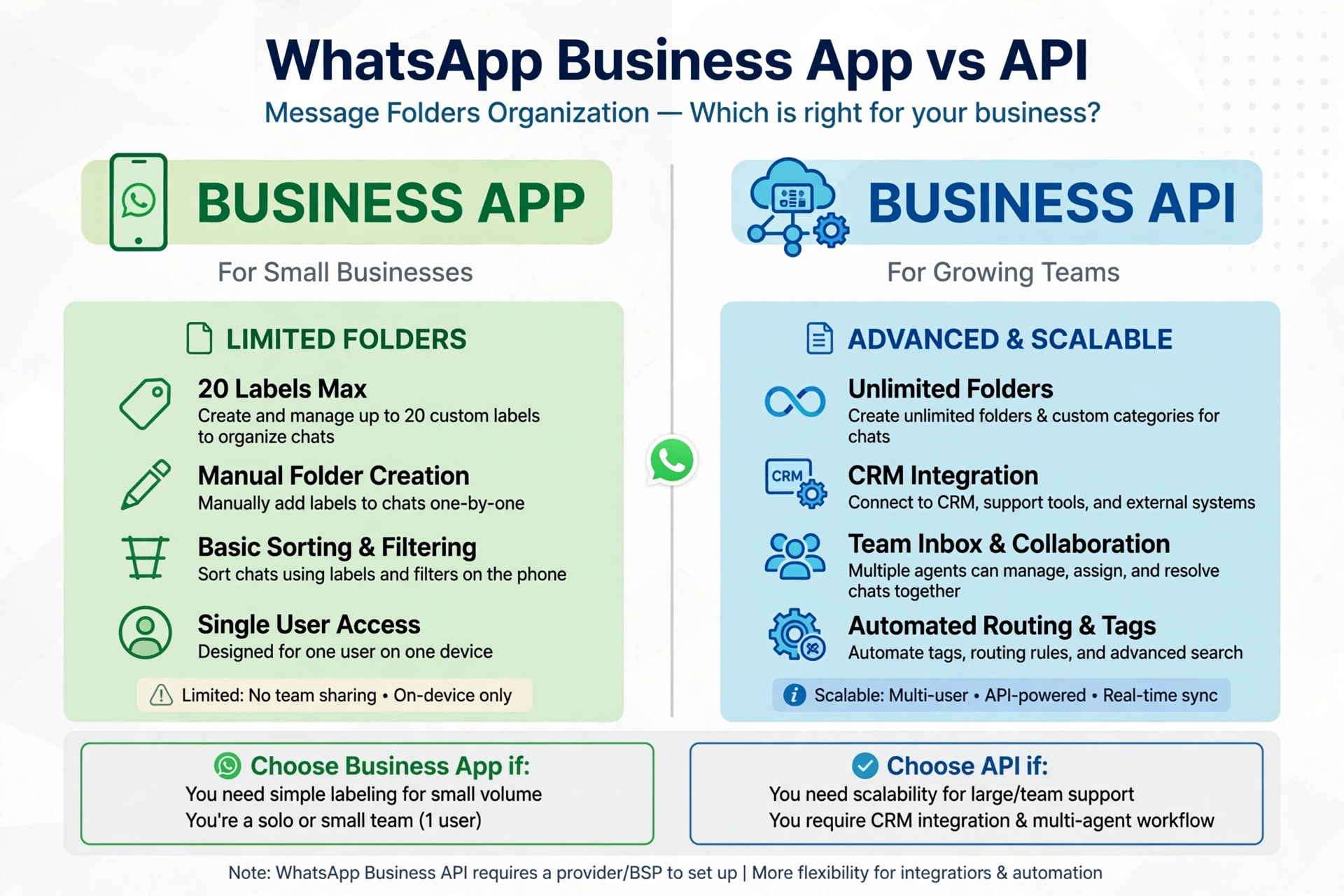
Real custom folders do exist, but not in the free app. They exist on the WhatsApp Business Platform, which is the API.
When you connect your number to the Platform through a shared team inbox provider, your inbox fundamentally changes. Instead of just filtering by labels, you get actual customizable folders and views. You can create folders like Unassigned Chats, My Open Chats, High-Value Leads, or Support Escalations, and everyone on your team sees the same structure.
The difference is not just the name. These folders run on rules. You can set automation that says if a message contains price or quote, move it to the Sales folder and assign it to sales. If a customer has waited more than two hours, move them to Urgent and notify a manager. That automation is what removes manual tagging and stops leads from slipping through. If you are a solo founder under a hundred chats a day, labels are enough. If you have two or more people handling WhatsApp and you are losing track of conversations, that is the signal you have outgrown the app.
Best Practices to Organize Your WhatsApp Business Inbox
The best organization system is one your team will follow when it is busy.
Design your labels as a pipeline with a clear start and end, not as random categories. A sales pipeline should move forward: New Lead to Qualified to Quote Sent to Won or Lost. A support pipeline should move from New Ticket to In Progress to Waiting on Customer to Resolved. When there is an order, anyone knows what the next action is without asking.
Use colors to indicate action, not just category. Reserve red for action required now. Use yellow for waiting. Use green for done. Over a few days your brain learns the pattern and you can assess the entire inbox in seconds.
Clean it daily. The fastest way to break your folder system is to leave old labels attached. A chat marked as both New Order and Order Complete makes your filters useless. Build a five-minute end-of-day routine to clear completed labels. In a team, rotate who owns inbox hygiene each week so it actually happens.
Pair your labels with other tools. If you have a Pending Payment folder, create a Quick Reply for payment reminders to use inside that view. If you have a New Customer folder, match it with a greeting message. When organization and replies work together, you save time on both.
Why You Can’t See Folders or Labels: Troubleshooting
If you cannot find labels at all, you are likely on the standard WhatsApp Messenger, not the WhatsApp Business App. Labels and filters only exist in the Business version. Update to the latest version from the Play Store or App Store, then check Settings and Business Tools.
If you created labels but your teammate cannot see them, that is expected behavior. Labels in the Business App are stored locally and do not sync as shared folders across multiple phones. Shared, real-time folders only work when you move to the API and a team inbox.
Final Verdict: Should You Use Labels or Switch to API?
Use labels if you are a solo operator or a small team handling fewer than a hundred conversations a day. It is free, it is native, and you can organize your entire workflow today.
Switch to the WhatsApp Business Platform when you have a team, when you need to assign conversations and track response times, or when you need chats to sort themselves automatically. For most businesses the journey is progressive. Master labels first in the app. That will teach you exactly what folders and automation rules you need later, so when you do upgrade to a shared inbox, your setup will be right from day one.
Frequently Asked Questions About WhatsApp Business Message Folders
Does WhatsApp Business automatically sort messages into folders?
No. The Business App does not auto-sort. You must manually assign labels, then filter by them. Automatic sorting into custom folders only works on the WhatsApp Business Platform via a team inbox provider.
How many labels can I create?
You can create up to 20 labels, and each chat can have multiple labels. Most organized inboxes use five to seven core labels.
Can I create sub-folders?
Sub-folders are not supported in the app. You cannot nest a label inside another. On the API, many providers allow nested folders or custom views that function like sub-folders.
Why can’t I see folder options?
You will not see anything called folders. Look for Filters on your Chats screen and Labels under Settings and Business Tools. That is the folder system, and it only exists in the WhatsApp Business App, not regular WhatsApp.
Also Read: Retroid Pocket Duo Everything We Know About the Dual OLED Handheld
