


Cybersecurity tips are small, repeatable habits that prevent most online attacks. The ones that matter most in 2026 are using unique passwords with a password manager and passkeys, turning on two-factor authentication with an authenticator app, keeping your software set to auto-update, learning to spot AI-generated phishing and QR code scams, securing your home Wi-Fi router, and keeping an offline backup. CISA notes that basic cyber hygiene blocks roughly 90% of common attacks, and in my audits of small businesses, every single compromise traced back to one of these basics being missed.
Most breaches don’t start with a brilliant hack. They start with a reused password from a 2019 breach, a fake invoice that looked exactly like QuickBooks, or a router that hadn’t been updated since it was installed. Defense doesn’t require you to be technical. It requires you to be consistent about a few unglamorous things.
What Is Cyber Hygiene and Why Most People Get It Wrong
Cyber hygiene is the daily maintenance of your digital life, and most people get it wrong because they treat it as a product, not a habit.
You install an antivirus, see a green check, and feel done. In practice, security is closer to brushing your teeth. Attackers aren’t targeting your laptop because of what’s on it. They’re running automated tools that test millions of email and password pairs leaked from old breaches, a technique known as credential stuffing. If you reused a password, you are already a match. That is why CISA defines cyber hygiene as a set of routine actions that reduce your exposure, not a one-time purchase.
What Are the Most Important Cybersecurity Tips?
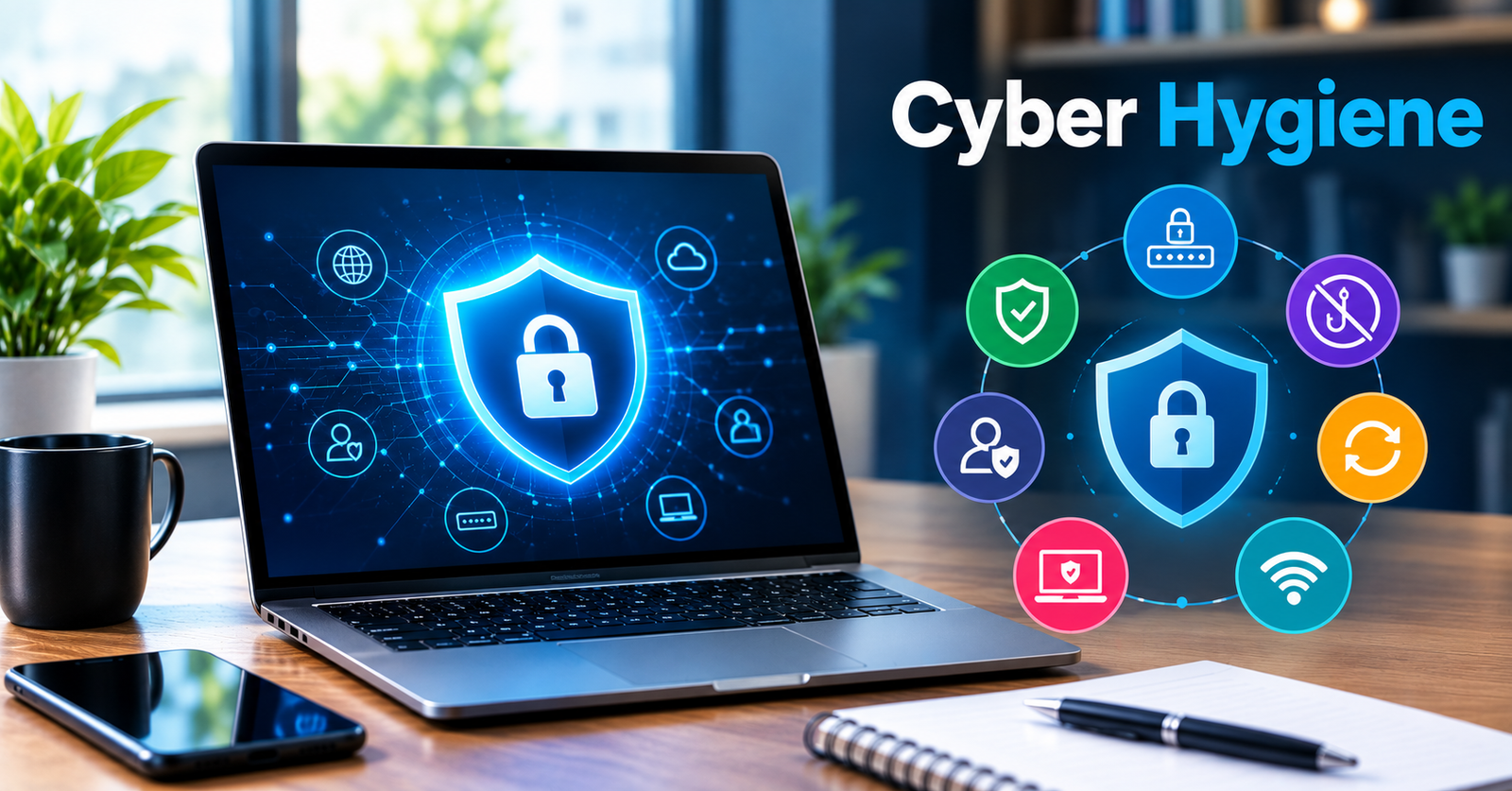
The most important cybersecurity tips are: 1. Use unique passwords with a password manager and switch to passkeys where possible, 2. Enable two-factor authentication with an authenticator app or security key, 3. Turn on automatic software and browser updates, 4. Learn to identify phishing, AI voice scams, and QR code phishing, 5. Secure your home Wi-Fi router and use WPA3, 6. Back up data following the 3-2-1 rule, 7. Limit app permissions and third-party access, and 8. Lock devices with biometrics and full-disk encryption.
Those eight cover the bulk of the risk. The full twelve below explain exactly how to do them without wasting time.
The 12 Essential Cybersecurity Tips Everyone Should Follow
1. Stop Reusing Passwords – Use a Password Manager and Passkeys
Reusing passwords is still the fastest way to lose an account. When a retailer you used years ago gets breached, attackers take that email and password and try it on Gmail, Microsoft 365, and your bank. In the last 18 months of small-business reviews I’ve done, this was the entry point in over 60% of cases.
A dedicated manager like 1Password or Bitwarden fixes the fatigue. It generates a 20-character random password for every site and remembers it, so you only memorize one strong master passphrase. Where you see the option, switch to a passkey. Passkeys are built on the FIDO2 standard backed by Apple, Google, and Microsoft. Instead of a password, your phone holds a cryptographic key and you sign in with Face ID or fingerprint. There is nothing to leak, nothing to phish, and nothing to reuse. Start with your email. If someone owns your email, they own password resets for everything else.
Also Read: Shot Scope LM1 Review $200 Monitor Beats $3500 One?
2. Turn On Two-Factor Authentication (2FA) Everywhere That Matters
Two-factor authentication means a stolen password alone is not enough to get in. Someone needs your second factor too.
Text message codes are better than nothing, but they are the weakest form because of SIM swapping and interception. Use an authenticator app like Authy, Google Authenticator, or Microsoft Authenticator, or a hardware key like a YubiKey for your most critical accounts. The path is usually Account > Security > 2-Step Verification. Enable it for email, cloud storage, banking, and any admin accounts first.
The mistake I see constantly is turning on 2FA and then leaving recovery codes in your inbox or as a screenshot that syncs to iCloud Photos. Print them and store them where you keep your passport.
3. Keep Your Software and Devices Updated Automatically
Most updates are not about features. They are patches for security holes attackers are already using. When Chrome, Windows, macOS, or iOS prompts you, it often means a vulnerability is being exploited in the wild.
Set everything to auto-update and stop deferring it. That includes your browser, which is your real workspace, and your router, which most homes have never updated. On a router, log into 192.168.1.1, check Administration > Firmware Update, and enable automatic updates if available. If your router is five years old and no longer receives updates from the manufacturer, replace it. That old device is now your weakest link.
And if an app you haven’t opened in a year wants an update, ask whether you still need the app at all. Fewer apps means a smaller attack surface.
4. Learn to Spot Phishing Before You Click
More than 90% of successful cyberattacks start with phishing, according to CISA’s Stop Ransomware guide. In 2026, phishing is no longer broken English. It’s AI-written, perfectly branded, and often personalized with details scraped from LinkedIn.
Build a three-second habit before you click anything unexpected. First, check the sender domain, not just the display name. Look for microsft.com, amaz0n-support.com, or a slightly off company name. Second, check for manufactured urgency. “Your account will be closed today” or “CEO needs gift cards urgently” are designed to bypass your logic. Third, preview the link. Hover on desktop, long-press on mobile. If you weren’t expecting an invoice, document, or password reset, verify it another way. Open the app directly or call the sender using a number you already have.
Watch for two newer variants. Quishing uses QR codes on fake parking tickets, restaurant tables, or emails that say “Scan to verify your identity.” Those codes can point anywhere. And AI voice cloning scams can now mimic a family member or boss with a few seconds of audio. If you get an urgent call asking for money or a code, hang up and call back on a known number.
5. Secure Your Home Wi-Fi and Router
Your home Wi-Fi is the perimeter of your entire digital house. Most people never changed the default locks.
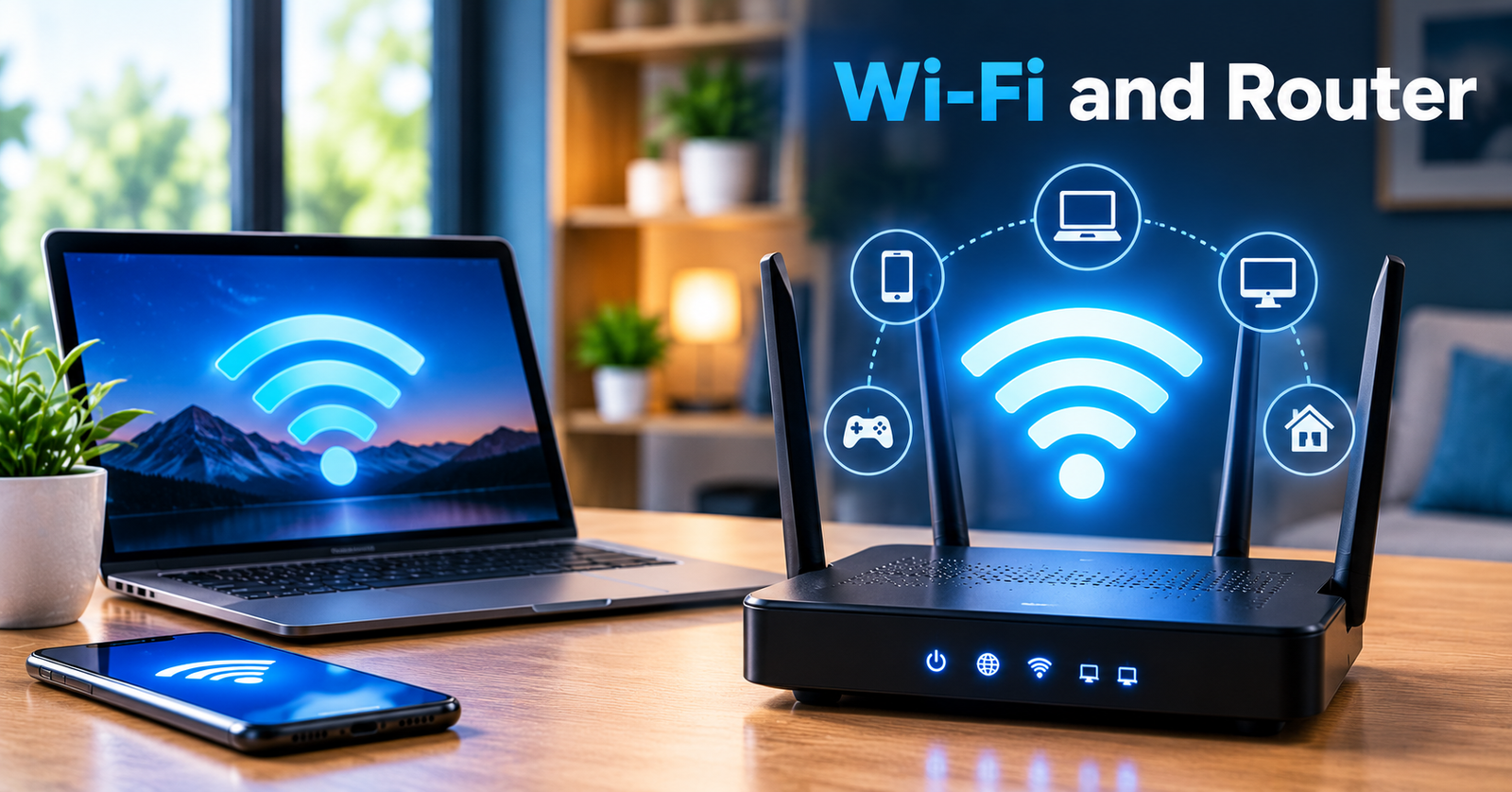
Change two passwords, not one. The admin password for the router itself, which is often still admin/admin, and your Wi-Fi password. Set encryption to WPA3 or at least WPA2, and pick a network name that doesn’t identify you. “SmithFamilyHouse” tells an attacker exactly whose traffic they are watching.
Create a separate guest network for smart home gear. Put TVs, cameras, robot vacuums, and cheap smart plugs on the guest network so if one of those devices is compromised by infostealer malware, it cannot move laterally to your laptop. This is the single best thing you can do for smart home security and it takes three minutes in your router settings.
6. Be Careful on Public Wi-Fi – Use a VPN When It Matters
Public Wi-Fi at airports, hotels, and cafes is convenient and trivial to abuse. An attacker on the same network can run a man-in-the-middle attack or broadcast a fake hotspot named “Free Airport WiFi” and capture what flows through it.
You don’t need a VPN running 24/7. You need it when you’re handling sensitive work on a network you don’t control. A reputable, paid VPN encrypts the tunnel between your device and the internet. Avoid free VPNs that monetize your browsing data. If you don’t have a VPN, use your phone’s cellular hotspot for banking, ensure sites use HTTPS, and turn off auto-join for open networks in your phone’s Wi-Fi settings so it doesn’t silently connect.
If your company provides a VPN for remote work, use it for all work traffic, not just occasionally. And leave your built-in firewall enabled. Both Windows Firewall and macOS Firewall are on by default for a reason.
7. Back Up Your Data Using the 3-2-1 Rule
Ransomware doesn’t only hit big companies. It encrypts family photos, tax folders, and small business invoices. If you have a solid backup, ransomware becomes an inconvenience rather than a disaster.
The 3-2-1 rule is the simplest framework that actually works. Keep three copies of anything important, on two different types of storage, with one copy offsite. For most people that means the original on your laptop, a copy in Google Drive or iCloud, and another copy on an external hard drive that you unplug when not in use. Automate it. Manual backups fail because you forget.
Test it once. Try to restore a single file this week. A backup you’ve never tested is just a theory.
8. Think Before You Share on Social Media
Social media is free reconnaissance for attackers. Your dog’s name, your child’s birthday, your high school, your mother’s maiden name, and that real-time post that your house is empty for the next ten days in Bali are all answers to security questions or fodder for password guessing and social engineering.
You don’t need to delete your accounts. Tighten the aperture. On Facebook and Instagram, limit who can see old posts, hide your birth year, and avoid posting travel in real time. Be skeptical of viral quizzes: “What was your first car? What street did you grow up on?” Those are often harvesting security question answers.
For parents, this matters twice. Kids will share their school name, location, and daily routine without realizing what that reveals.
9. Lock Every Device and Use Biometrics
If someone steals your unlocked laptop from a cafe table, no antivirus will save you. Physical access is total access.
Set your phone, tablet, and laptop to auto-lock after one to two minutes. Use Face ID or fingerprint plus a strong PIN, not 1234 or your birth year. Enable full-disk encryption. On Windows it’s BitLocker, on macOS it’s FileVault, and on iPhones and modern Android phones it’s enabled as soon as you set a passcode. That way, if the device is lost, the contents are unreadable.
If biometrics struggle in winter or with wet hands, add a second fingerprint in settings rather than disabling it altogether.
10. Use Built-in Security Tools Correctly
You don’t need five security products fighting each other and slowing your machine down. For most individuals, the built-in tools are excellent if you leave them on.
Windows Security, which includes Microsoft Defender Antivirus, now consistently scores among the top in independent AV-TEST evaluations. macOS has XProtect and Gatekeeper running quietly in the background. Both include firewalls. Keep them enabled. Use a modern browser like Chrome or Edge with Safe Browsing on so it warns you about dangerous sites. A reputable content blocker also helps, because malvertising, malicious ads that infect you without a click, is a real vector.
The most common mistake here is installing two antiviruses at once. They conflict, slow everything down, and leave you less protected, not more. Pick one solid solution and keep it updated.
11. Limit App Permissions and Third-Party Access
This is the quiet exposure almost every other guide skips.
That flashlight app does not need your contacts, photos, and precise location, but over time we grant it anyway. And every time you click “Sign in with Google” on some random site, you may be granting it access to read your Gmail or Google Drive.
Once a quarter, do a quick permission audit. On your phone, go to Settings > Privacy and see which apps can access location, microphone, and contacts. Revoke anything that doesn’t make sense. On Google, go to myaccount.google.com > Permissions > Third-party access. On Microsoft, go to account. microsoft.com > Privacy > Apps and services. Remove anything you don’t recognize or no longer use. It takes five minutes and closes doors you forgot you left open. Our guide on how to audit connected apps walks through the exact screens.
12. Have a Response Plan Before You Need It
No one plans to get hacked, which is exactly why everyone panics when it happens. A short plan on paper saves hours.
Write down where your backups are, how to freeze your credit with Equifax, Experian, and TransUnion, and the links to report fraud: IdentityTheft.gov for the FTC and ic3.gov for the FBI‘s Internet Crime Complaint Center. If you run a small business, keep an offline contact list for your team and make sure everyone knows the first step is to disconnect a compromised machine from Wi-Fi, not to try to fix it while still connected. The first five minutes after you notice something wrong determine how far the damage spreads.
Cybersecurity Tips for Small Businesses and Remote Workers
Small businesses get targeted because they assume they are too small to matter. Attackers know you don’t have a dedicated security team, which makes you easier than a large enterprise with a SOC.
For this audience, security starts with people, not software. Make it normal to report suspicious emails without embarrassment. Build a culture where it is okay to double-check a strange request, even if it appears to come from the CEO. Apply the principle of least privilege, meaning people only have access to the data and tools they actually need. Your intern does not need access to payroll.
For remote workers, keep work and personal separate where you can. Use a separate browser profile or a separate user account on your computer for work. Don’t let family members use your work laptop. Don’t copy work files to personal USB drives. If you handle customer data, encrypt it, know where it lives, and know your state’s breach notification requirements. Our small business cybersecurity checklist expands on this for teams under 50.
5 Cybersecurity Myths That Still Put You at Risk
Some myths persist because they used to be true.
Incognito mode does not make you anonymous. It only stops your browser from saving history on that device. Your internet provider, your employer, and the websites you visit still see your activity.
Macs and iPhones can get malware. They are targeted less than Windows, but they are far from immune. Mac malware surged in the last two years, often through fake browser updates and pirated software delivering infostealers.
Changing your password every 30 days makes you less secure if it pushes you to use Password1, Password2, Password3. NIST’s latest guidance is clear: keep a long, unique password and only change it when there is evidence of compromise.
A strong password by itself is not enough. Without two-factor authentication, any password can be phished, reused, or leaked.
And you are interesting enough to be hacked. These attacks are automated. No one is handpicking you. They are spraying the internet and seeing who reused a password or clicked the link.
What to Do If You Think You’ve Been Hacked
What you do in the first few minutes matters more than what you do the next day.
First, disconnect the affected device from the internet, but don’t wipe it immediately if you need evidence for work IT. From a clean device, change your email password first. Email is the master key. Then change banking and other critical accounts. Check haveibeenpwned.com to see if your address appeared in a known breach. If you see unauthorized charges, call your bank and freeze your credit.
On your phone or laptop, run a security scan and look for any device management profiles or apps you did not install yourself. Then report it. In the US, file at ReportFraud.ftc.gov and at ic3.gov if money was involved. If you run a business and customer data was involved, you may have a legal duty to notify. Keep notes of what happened and when. And only restore from backup once you are sure the infection is gone, or you will reinfect yourself.
Your 30-Minute Security Upgrade – Where to Start Today
If this all feels like a lot, don’t try to do it all. Do it in order.
In the first five minutes, turn on auto-updates for your phone, laptop, and browser, and turn on two-factor authentication for your primary email. That alone blocks most automated attacks.
In the next fifteen minutes, install a password manager and move your ten most important logins into it with new, unique passwords. Make sure cloud backup is enabled.
Read More: Sony PlayStation Store Credit Settlement Eligibility, Payout & Court Status [Updated 2026]
In the last ten minutes, log into your router and change that admin password, go to your Google Account and remove third-party apps you don’t recognize, and set your devices to auto-lock after one minute.
Do that and you are already ahead of most people on the internet. You can build from there.
Frequently Asked Questions
How often should I change my passwords?
You don’t need to rotate them on a schedule anymore. NIST now advises keeping a long, unique password for each site and changing it only if it shows up in a breach, you shared it, or you notice suspicious activity. Uniqueness matters more than frequent changes.
What is the number one cybersecurity threat in 2026?
For most individuals and small businesses, it is still phishing and social engineering, now amplified by AI. Attackers use AI to write flawless emails, clone voices, and build convincing fake login pages. Technology helps, but your ability to pause and verify is still the best defense.
Can you be hacked on public Wi-Fi?
Yes, if the network is malicious or you visit unencrypted sites. The main risks are fake hotspots and session hijacking. Use your phone’s cellular hotspot for anything sensitive, or a trusted VPN, and turn off auto-join for open networks.
Do I really need both a VPN and antivirus?
They do different things. Antivirus protects your device from malicious software. A VPN protects your connection from snooping on untrusted networks. For most people, the built-in antivirus plus smart browsing is enough, and a VPN is situational for travel and remote work.
What is the 3-2-1 backup rule?
Three copies of anything important, on two different storage types, with one copy offsite. For example: the original on your laptop, a copy in Google Drive, and another copy on an external drive you keep elsewhere. It protects against hardware failure, theft, and ransomware.
