

Close Menu
techinkey.comtechinkey.com
    What's Hot

    Xbox Nano Controller: Price, Release Date & Specs

    October 14, 2026

    iPhone Duo: Apple’s First Foldable iPhone — Price, Specs & Release Date

    October 14, 2026

    Apple Smart Home Hub (Rumored): Display, Chip, Price & Release

    October 13, 2026
    Facebook X (Twitter) Instagram
    Trending
    • Xbox Nano Controller: Price, Release Date & Specs
    • iPhone Duo: Apple’s First Foldable iPhone — Price, Specs & Release Date
    • Apple Smart Home Hub (Rumored): Display, Chip, Price & Release
    • Valeo SCALA 3 LiDAR: The Sensor Behind Level 3 and Level 4 Driving
    • Tesla FSD Renamed “Tesla Assisted Driving” in Europe: What Changed
    • XPeng L03 REEV Launches in Pakistan: Price, Range, and Charging
    • BYD Da Han EV: 1,008 km Range Flagship Launches October 13
    • How to Fix Laptop Overheating: 9 Fixes That Actually Work
    Facebook X (Twitter) Instagram Pinterest VKontakte
    techinkey.comtechinkey.com
    • Home
    • Tech News
    • Technology
    • SmartPhones
    • Gadget
    • Smart Car Tech
      • Electric Vehicles
    • How-To
    techinkey.comtechinkey.com
    Home - How-To - Why Is My Wi-Fi So Slow? 10 Fixes That Actually Work
    How-To

    Why Is My Wi-Fi So Slow? 10 Fixes That Actually Work

    Anas AliBy Anas AliOctober 13, 2026Updated:October 13, 2026No Comments5 Mins Read
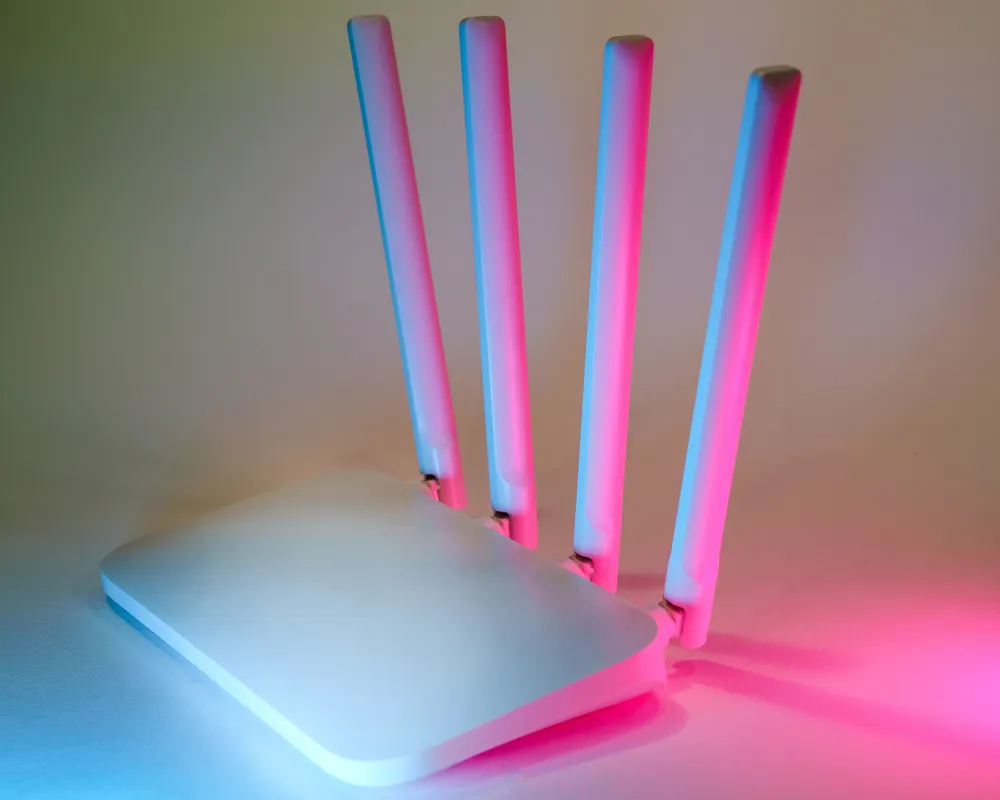
    Why is my Wi-Fi so slow
    Share
    Facebook Twitter LinkedIn Pinterest Email

    Slow Wi-Fi is usually caused by one of these: your router’s placement, too many devices, interference, an overloaded band, or your internet plan itself. Start by running a speed test next to the router, then restart the router. If speeds are fine at the router but bad in your room, it’s a signal problem — move the router or switch bands. The full checklist below pinpoints your exact cause.

    Table of Contents

    Toggle
    • Step 1: Test Your Speed (Know What You’re Fixing)
    • Step 2: Restart Your Router and Modem
    • Step 3: Move the Router to a Better Spot
    • Step 4: Switch Between 2.4 GHz and 5 GHz
    • Step 5: Reduce the Number of Connected Devices
    • Step 6: Check for Background Downloads and Updates
    • Step 7: Change the Wi-Fi Channel
    • Step 8: Update Your Router’s Firmware
    • Step 9: Test With an Ethernet Cable
    • Step 10: Upgrade Old Equipment or Extend Coverage
    • Frequently Asked Questions
      • Why is my Wi-Fi slow on one device but fast on others?
      • Why is my Wi-Fi slow at night?
      • Does restarting the router really help?
      • Is 5 GHz always faster than 2.4 GHz?
      • When should I call my ISP?
    • Related Guides

    Step 1: Test Your Speed (Know What You’re Fixing)

    1. Go to speedtest.net on a phone or laptop standing next to the router.
    2. Run the test. Compare the result to the speed your ISP plan promises.
    3. Now run the same test in the room where Wi-Fi feels slow.
    4. Slow everywhere, even at the router → the problem is your internet connection or the router itself.
    5. Fast at the router, slow in your room → the problem is Wi-Fi signal/coverage.

    Step 2: Restart Your Router and Modem

    Unplug both for 30 seconds, plug the modem back in first, wait until its lights stabilize, then plug in the router. This clears memory glitches and stale connections and fixes a surprising number of slowdowns.

    Step 3: Move the Router to a Better Spot

    Wi-Fi signals weaken through walls, floors, metal, and water (fish tanks, radiators).

    • Put the router in a central, open location, not in a closet, behind the TV, or on the floor.
    • Keep it away from microwaves, baby monitors, and Bluetooth speakers, which cause interference.
    • Raise it to a shelf or table — height helps coverage.

    Wi-Fi router placement

    Step 4: Switch Between 2.4 GHz and 5 GHz

    Most routers broadcast two bands:

    Band Speed Range Best for
    2.4 GHz Slower Longer range, passes through walls better Far rooms, smart home devices
    5 GHz Faster Shorter range Same room / nearby rooms, streaming, gaming

    If your device is far from the router and stuck on 5 GHz, switching to 2.4 GHz can actually be faster. If you’re near the router and on 2.4 GHz, switching to 5 GHz can be much faster.

    Step 5: Reduce the Number of Connected Devices

    Every connected phone, TV, camera, and smart device shares your bandwidth. Background uploads (cloud backups, photo syncing, game updates) quietly eat speed. Pause cloud backups and big downloads, and disconnect devices you aren’t using.

    Step 6: Check for Background Downloads and Updates

    A Windows update, a game download, or a cloud photo sync on one device can choke the whole network. Check:

    • Windows: Settings > Windows Update — pause downloads if one is running.
    • Phones: Pause App Store / Play Store updates and cloud photo uploads while you need speed.

    If downloads are slow AND your laptop itself feels sluggish, see how to speed up a slow laptop.

    Step 7: Change the Wi-Fi Channel

    In apartments and dense neighborhoods, many routers compete on the same channels.

    1. Log in to your router’s admin page (usually 192.168.1.1 or 192.168.0.1 — check the sticker on the router).
    2. Find the wireless/channel setting.
    3. Try a different channel, or set it to Auto if your router picks channels itself.

    Step 8: Update Your Router’s Firmware

    Old firmware can cause slowdowns and security holes. In your router’s admin page, look for Firmware Update and install the latest version. Some routers update automatically — check that auto-update is on.

    Step 9: Test With an Ethernet Cable

    Plug a laptop directly into the router with an Ethernet cable and run a speed test.

    • Fast on Ethernet, slow on Wi-Fi → your Wi-Fi setup is the problem (placement, band, interference, old router).
    • Slow on Ethernet too → the problem is your internet connection or ISP — contact your provider.

    Step 10: Upgrade Old Equipment or Extend Coverage

    • Router older than 5 years? It may not support modern Wi-Fi standards. A current Wi-Fi 5 or Wi-Fi 6 router is a major upgrade.
    • Dead zones? A mesh Wi-Fi system or a well-placed extender fixes far-room coverage far better than moving the router alone.
    • Paying for slow speed? If your plan is 25 Mbps and five people stream at once, no router fix will help — upgrading the plan is the answer.

    Frequently Asked Questions

    Why is my Wi-Fi slow on one device but fast on others?

    Usually a device-specific issue: an old Wi-Fi adapter, a stuck background download, or the device being on the wrong band. Restart the device, forget and rejoin the network, and check for updates.

    Why is my Wi-Fi slow at night?

    Peak-hour congestion (neighbors all streaming at once) and scheduled backups/updates. Try changing the Wi-Fi channel and pausing cloud backups.

    Does restarting the router really help?

    Yes — it clears temporary glitches, refreshes your connection to the ISP, and drops stale device sessions. It’s the first step for a reason.

    Is 5 GHz always faster than 2.4 GHz?

    Only at short range. 5 GHz is faster nearby but weaker through walls. Far from the router, 2.4 GHz is often faster in practice.

    When should I call my ISP?

    When wired (Ethernet) speeds are far below your plan’s promised speed, or when the connection drops repeatedly even after a router restart.

    Related Guides

    • How to Speed Up a Slow Laptop (Windows & Mac) — 10 Fixes That Work
    • Windows 11 Update Crashing Games and Apps? How to Fix It (October 2026)
    • How to Fix Laptop Overheating: 9 Fixes That Actually Work
    Share. Facebook Twitter Pinterest LinkedIn Tumblr Email
    Anas Ali
    • Website
    • X (Twitter)

    Anas Ali is a technology writer and editor at TechInKey, covering the latest developments in AI, smartphones, gadgets, software, apps, and digital technology. He focuses on creating clear, useful, and up-to-date content that helps readers understand new products, emerging technologies, and important technology trends.

    Related Posts

    How to Fix Laptop Overheating: 9 Fixes That Actually Work

    October 13, 2026

    How to Speed Up a Slow Laptop (Windows & Mac) — 10 Fixes That Work

    October 13, 2026

    How to Fix iOS 26 Battery Drain on iPhone (2026 Guide)

    October 13, 2026

    Windows 11 Update Crashing Games and Apps? How to Fix It (October 2026)

    October 13, 2026
    Add A Comment
    Leave A Reply Cancel Reply

    Advertisement
    Recent Post

    Xbox Nano Controller: Price, Release Date & Specs

    October 14, 2026

    iPhone Duo: Apple’s First Foldable iPhone — Price, Specs & Release Date

    October 14, 2026

    Apple Smart Home Hub (Rumored): Display, Chip, Price & Release

    October 13, 2026

    Valeo SCALA 3 LiDAR: The Sensor Behind Level 3 and Level 4 Driving

    October 13, 2026

    Tesla FSD Renamed “Tesla Assisted Driving” in Europe: What Changed

    October 13, 2026
    Advertisement

    TechInKey is your trusted source for the latest technology news, AI updates, gadget reviews, how-to guides, digital trends, and useful insights to help you stay informed in the fast-changing tech world.

    Email Us: techinkey133@gmail.com

    Facebook X (Twitter) Pinterest
    Recent Post

    Xbox Nano Controller: Price, Release Date & Specs

    October 14, 2026

    iPhone Duo: Apple’s First Foldable iPhone — Price, Specs & Release Date

    October 14, 2026

    Apple Smart Home Hub (Rumored): Display, Chip, Price & Release

    October 13, 2026
    Most Popular

    Samsung Galaxy S25 Ultra Review Real-World Price, Camera & Battery Test

    July 30, 2026

    Xiaomi 18 Pro: Specs, Price in India & Launch Date (2026)

    October 10, 2026

    Windows 11 2026 Update (26H2) Release Date& How to Install

    October 3, 2026
    • Homepage
    • About Us
    • Contact Us
    • Disclaimer
    • Privacy Policy
    • Terms & Conditions
    © 2026 TechInKey. All Rights Reserved.

    Type above and press Enter to search. Press Esc to cancel.