

Close Menu
techinkey.comtechinkey.com
    What's Hot

    Xbox Nano Controller: Price, Release Date & Specs

    October 14, 2026

    iPhone Duo: Apple’s First Foldable iPhone — Price, Specs & Release Date

    October 14, 2026

    Apple Smart Home Hub (Rumored): Display, Chip, Price & Release

    October 13, 2026
    Facebook X (Twitter) Instagram
    Trending
    • Xbox Nano Controller: Price, Release Date & Specs
    • iPhone Duo: Apple’s First Foldable iPhone — Price, Specs & Release Date
    • Apple Smart Home Hub (Rumored): Display, Chip, Price & Release
    • Valeo SCALA 3 LiDAR: The Sensor Behind Level 3 and Level 4 Driving
    • Tesla FSD Renamed “Tesla Assisted Driving” in Europe: What Changed
    • XPeng L03 REEV Launches in Pakistan: Price, Range, and Charging
    • BYD Da Han EV: 1,008 km Range Flagship Launches October 13
    • How to Fix Laptop Overheating: 9 Fixes That Actually Work
    Facebook X (Twitter) Instagram Pinterest VKontakte
    techinkey.comtechinkey.com
    • Home
    • Tech News
    • Technology
    • SmartPhones
    • Gadget
    • Smart Car Tech
      • Electric Vehicles
    • How-To
    techinkey.comtechinkey.com
    Home - How-To - How to Fix Laptop Overheating: 9 Fixes That Actually Work
    How-To

    How to Fix Laptop Overheating: 9 Fixes That Actually Work

    Anas AliBy Anas AliOctober 13, 2026Updated:October 13, 2026No Comments5 Mins Read
    How to fix laptop overheating
    Share
    Facebook Twitter LinkedIn Pinterest Email

    A laptop overheats when hot air can’t escape or when a program pushes the CPU too hard. The most common causes are blocked vents, dust in the fans, using the laptop on a bed or blanket, and a runaway app using 100% CPU. Start by putting the laptop on a hard flat surface, checking Task Manager for CPU hogs, and cleaning the vents. If the fan is very loud and the laptop is old, dust buildup is the most likely cause.

    Table of Contents

    Toggle
    • 1. Use Your Laptop on a Hard, Flat Surface
    • 2. Find the Program Heating Your CPU
    • 3. Clean the Vents and Fans
    • 4. Use a Cooling Pad
    • 5. Close Tabs and Heavy Apps You Don’t Need
    • 6. Update Your Drivers and BIOS
    • 7. Change Power Settings
    • 8. Check the Battery (Safety Warning)
    • 9. Replace the Thermal Paste (Advanced)
    • What Temperatures Are Normal?
    • Frequently Asked Questions
      • Is it normal for a laptop to get hot while gaming?
      • Why is my laptop fan so loud?
      • Can overheating damage my laptop?
      • Does a cooling pad really help?
      • Should I open my laptop to clean it?
    • Related Guides

    1. Use Your Laptop on a Hard, Flat Surface

    Beds, blankets, couches, and your lap block the air vents on the bottom and sides of the laptop. Always use it on a table or desk. If you must use it in bed, put a large book or lap desk underneath so the vents stay open.
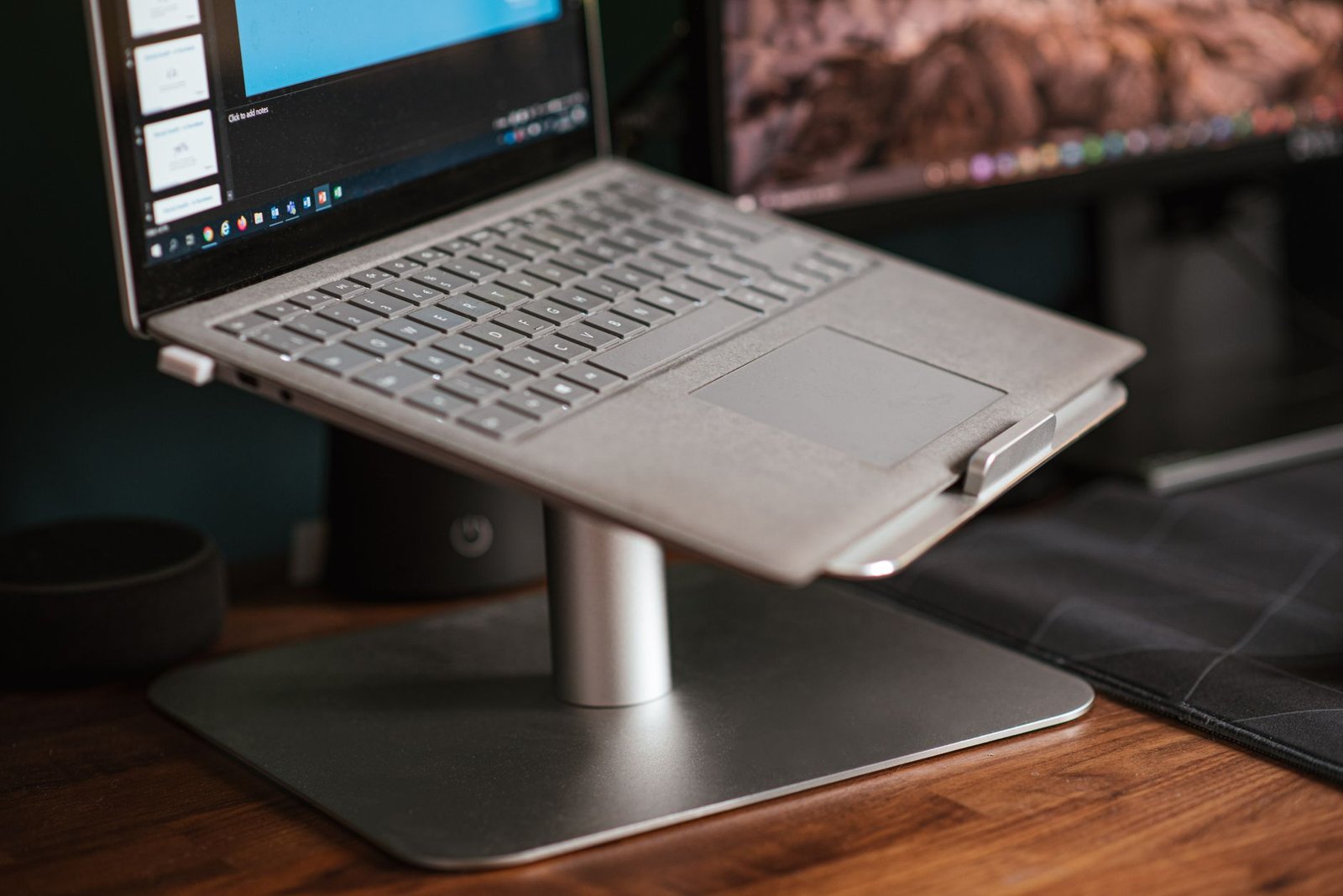
    Laptop on a stand for better airflow

    2. Find the Program Heating Your CPU

    A single stuck or heavy app can push your CPU to 100% and cook the laptop.

    • Windows: Press Ctrl + Shift + Esc > Task Manager > sort by CPU. End tasks you don’t need (don’t end system processes you don’t recognize).
    • Mac: Open Activity Monitor > sort by % CPU and quit heavy apps you aren’t using.

    Common culprits: browsers with dozens of tabs, video editing software, games, and background updaters.

    3. Clean the Vents and Fans

    Dust is the #1 cause of overheating in laptops older than a year or two.

    1. Turn the laptop off and unplug it.
    2. Use short bursts of compressed air on the side/rear vents (hold the can upright, keep bursts short).
    3. For a deep clean, have a repair shop open the laptop and clean the fans properly.

    Never use a vacuum cleaner or a hair dryer — they can damage components with static or heat.

    4. Use a Cooling Pad

    A laptop cooling pad (a stand with built-in fans) improves airflow under the laptop and typically drops temperatures by several degrees. It also raises the laptop to a more comfortable typing angle. It’s a cheap fix that helps any laptop, especially older ones.

    5. Close Tabs and Heavy Apps You Don’t Need

    Every open browser tab and background app adds CPU load and heat. Close tabs you aren’t reading, quit apps running in the background (check the system tray / menu bar), and avoid running a game and a video render at the same time.

    6. Update Your Drivers and BIOS

    Manufacturers release updates that improve fan control and power management.

    • Windows: Install Windows updates, then check your laptop maker’s support page (Dell, HP, Lenovo, ASUS, etc.) for BIOS and chipset/driver updates.
    • Mac: Install macOS updates — Apple includes fan and thermal management improvements in them.

    7. Change Power Settings

    • Windows: Settings > System > Power > set Power mode to Balanced (not Best performance) for everyday use. In Advanced power settings, you can also cap the maximum processor state to 95–99% to reduce heat during heavy tasks.
    • Mac: System Settings > Battery > use Low Power Mode when you don’t need full performance.

    8. Check the Battery (Safety Warning)

    If the bottom of the laptop is bulging, the trackpad feels raised, or the case doesn’t sit flat, the battery may be swelling. Stop using the laptop immediately, don’t charge it, and take it to the manufacturer or a repair shop. A swollen battery is a fire risk — this is not a DIY fix.

    9. Replace the Thermal Paste (Advanced)

    Thermal paste transfers heat from the CPU/GPU to the cooling system. After 3–5 years it dries out, and temperatures rise even in a clean laptop. Replacing it is an advanced job — if you’re comfortable opening your laptop, use quality thermal paste and follow a guide for your exact model. Otherwise, a repair shop can do it for a modest fee.

    What Temperatures Are Normal?

    Situation Typical range
    Idle / light browsing 35–55°C
    Watching video / office work 55–70°C
    Gaming / video editing 70–90°C
    Above 95°C for long periods Too hot — act on the fixes above

    Check your temperatures with free tools like HWMonitor (Windows) or Macs Fan Control (Mac).
    Thermal throttling also makes your laptop feel slow — see how to speed up a slow laptop.

    Frequently Asked Questions

    Is it normal for a laptop to get hot while gaming?

    Yes — gaming pushes the CPU and GPU hard, so 70–90°C is normal. It becomes a problem if the laptop shuts down, throttles badly, or stays above 95°C for long periods.

    Why is my laptop fan so loud?

    The fan spins faster to cool the laptop. Dust buildup, blocked vents, or a heavy app are the usual reasons. Clean the vents and check Task Manager for CPU hogs.

    Can overheating damage my laptop?

    Yes. Sustained extreme heat shortens the life of the battery, CPU, and other components, and can cause sudden shutdowns or data loss. Don’t ignore chronic overheating.

    Does a cooling pad really help?

    Yes, a few degrees typically — enough to stop thermal throttling in many cases. It’s most effective combined with clean vents and a hard surface.

    Should I open my laptop to clean it?

    Light vent cleaning with compressed air is safe. Full disassembly is best left to a repair shop unless you’re experienced — you can void the warranty or damage delicate cables.

    Related Guides

    • How to Speed Up a Slow Laptop (Windows & Mac) — 10 Fixes That Work
    • Windows 11 Update Crashing Games and Apps? How to Fix It (October 2026)
    • Why Is My Wi-Fi So Slow? 10 Fixes That Actually Work
    Share. Facebook Twitter Pinterest LinkedIn Tumblr Email
    Anas Ali
    • Website
    • X (Twitter)

    Anas Ali is a technology writer and editor at TechInKey, covering the latest developments in AI, smartphones, gadgets, software, apps, and digital technology. He focuses on creating clear, useful, and up-to-date content that helps readers understand new products, emerging technologies, and important technology trends.

    Related Posts

    Why Is My Wi-Fi So Slow? 10 Fixes That Actually Work

    October 13, 2026

    How to Speed Up a Slow Laptop (Windows & Mac) — 10 Fixes That Work

    October 13, 2026

    How to Fix iOS 26 Battery Drain on iPhone (2026 Guide)

    October 13, 2026

    Windows 11 Update Crashing Games and Apps? How to Fix It (October 2026)

    October 13, 2026
    Add A Comment
    Leave A Reply Cancel Reply

    Advertisement
    Recent Post

    Xbox Nano Controller: Price, Release Date & Specs

    October 14, 2026

    iPhone Duo: Apple’s First Foldable iPhone — Price, Specs & Release Date

    October 14, 2026

    Apple Smart Home Hub (Rumored): Display, Chip, Price & Release

    October 13, 2026

    Valeo SCALA 3 LiDAR: The Sensor Behind Level 3 and Level 4 Driving

    October 13, 2026

    Tesla FSD Renamed “Tesla Assisted Driving” in Europe: What Changed

    October 13, 2026
    Advertisement

    TechInKey is your trusted source for the latest technology news, AI updates, gadget reviews, how-to guides, digital trends, and useful insights to help you stay informed in the fast-changing tech world.

    Email Us: techinkey133@gmail.com

    Facebook X (Twitter) Pinterest
    Recent Post

    Xbox Nano Controller: Price, Release Date & Specs

    October 14, 2026

    iPhone Duo: Apple’s First Foldable iPhone — Price, Specs & Release Date

    October 14, 2026

    Apple Smart Home Hub (Rumored): Display, Chip, Price & Release

    October 13, 2026
    Most Popular

    Samsung Galaxy S25 Ultra Review Real-World Price, Camera & Battery Test

    July 30, 2026

    Samsung One UI 9 Release Date, Eligible Devices & New Features

    August 23, 2026

    Apple Smart Home Hub (Rumored): Display, Chip, Price & Release

    October 13, 2026
    • Homepage
    • About Us
    • Contact Us
    • Disclaimer
    • Privacy Policy
    • Terms & Conditions
    © 2026 TechInKey. All Rights Reserved.

    Type above and press Enter to search. Press Esc to cancel.