


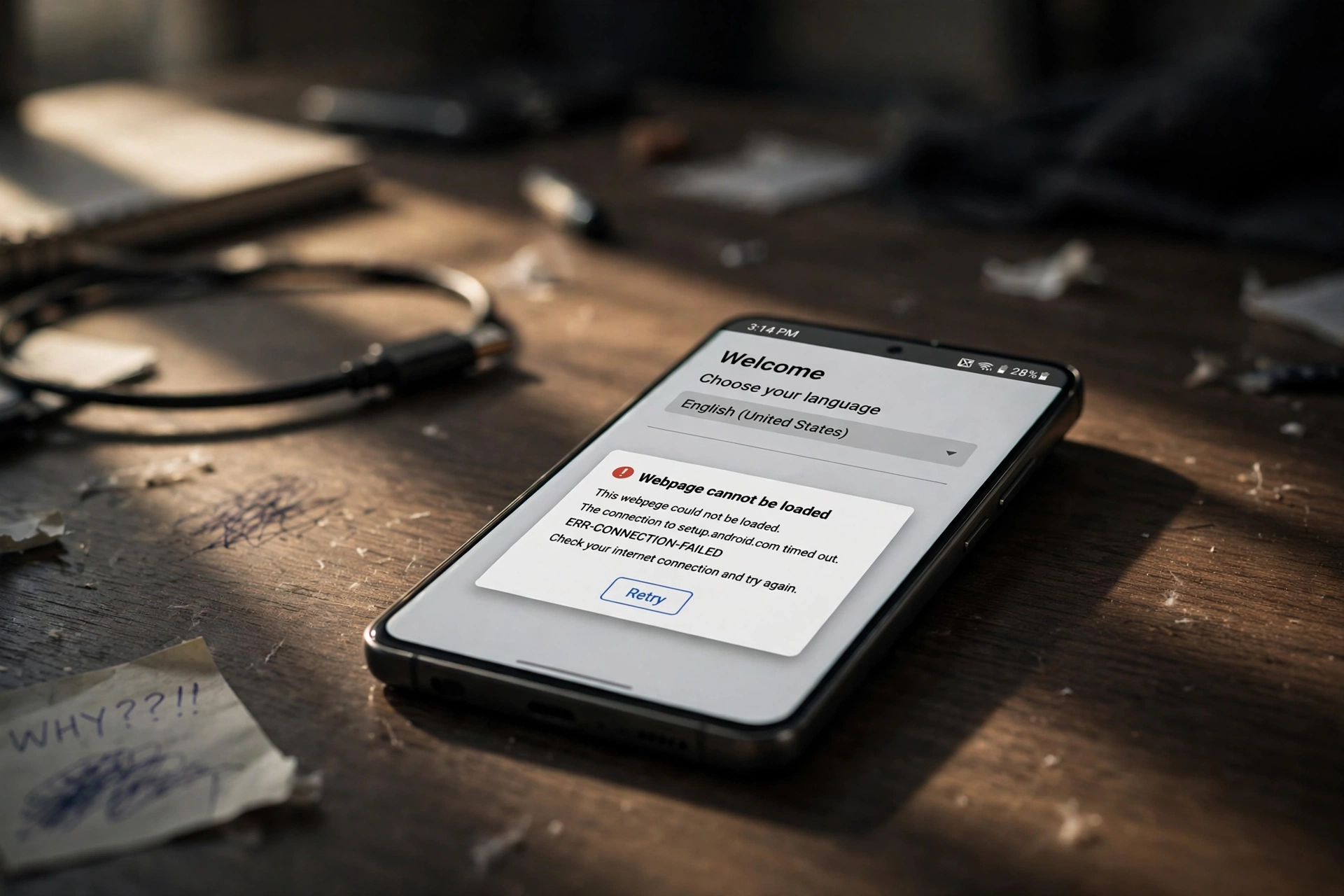
If your Galaxy S26 Ultra froze on the setup screen right after the One UI 9 update, you are not alone — and you have not bricked your phone. Samsung has confirmed a bug that can leave the phone stuck during setup, and the good news is that there are official workarounds that can get you past it without losing your data.
Key Takeaways
- Samsung has confirmed a bug that can freeze the Galaxy S26 Ultra on the setup screen after One UI 9.
- The problem is linked to Android System WebView failing to load the Samsung account policies page.
- Switching networks is the first official workaround to try.
- Updating the browser and WebView, or accepting terms on the Samsung account website, can also clear it.
- Do not factory reset the phone until you have tried Samsung’s workarounds.
What’s Actually Happening?
During setup, the Galaxy S26 Ultra needs to load a Samsung account policies page. On affected phones, that page does not load properly because Android System WebView — the component many apps use to display web content inside the app — fails at that step. The setup flow then has nothing to move on to, so the phone appears frozen on the setup screen.
That is why the usual advice to just wait longer or restart repeatedly does not help on its own: the setup process is waiting on a page that is not rendering. The fixes below work by giving the phone another route to that content, or by completing the account step somewhere else so setup can continue. For background on the update itself, see our guide to Samsung One UI 9 release date, eligible devices and new features, and for the phone itself, our Samsung Galaxy S26 Ultra review, price and specs.
How to Fix It (Samsung’s Official Workarounds)
- Switch networks. If you are on Wi-Fi, switch to mobile data, or try a different Wi-Fi network. A different network path can let the policies page load when the first connection stalls.
- Update your browser and WebView. Update Android System WebView and your browser (for example, Samsung Internet or Chrome) from the Play Store, then return to setup and try again.
- Accept the terms on the Samsung account website. On another device, sign in to your Samsung account on Samsung’s account website and accept the terms and policies there, so setup no longer needs to load that page on the phone.
- Sign out and sign back in. If setup lets you reach account options, sign out of your Samsung account and sign back in, then continue through setup again.
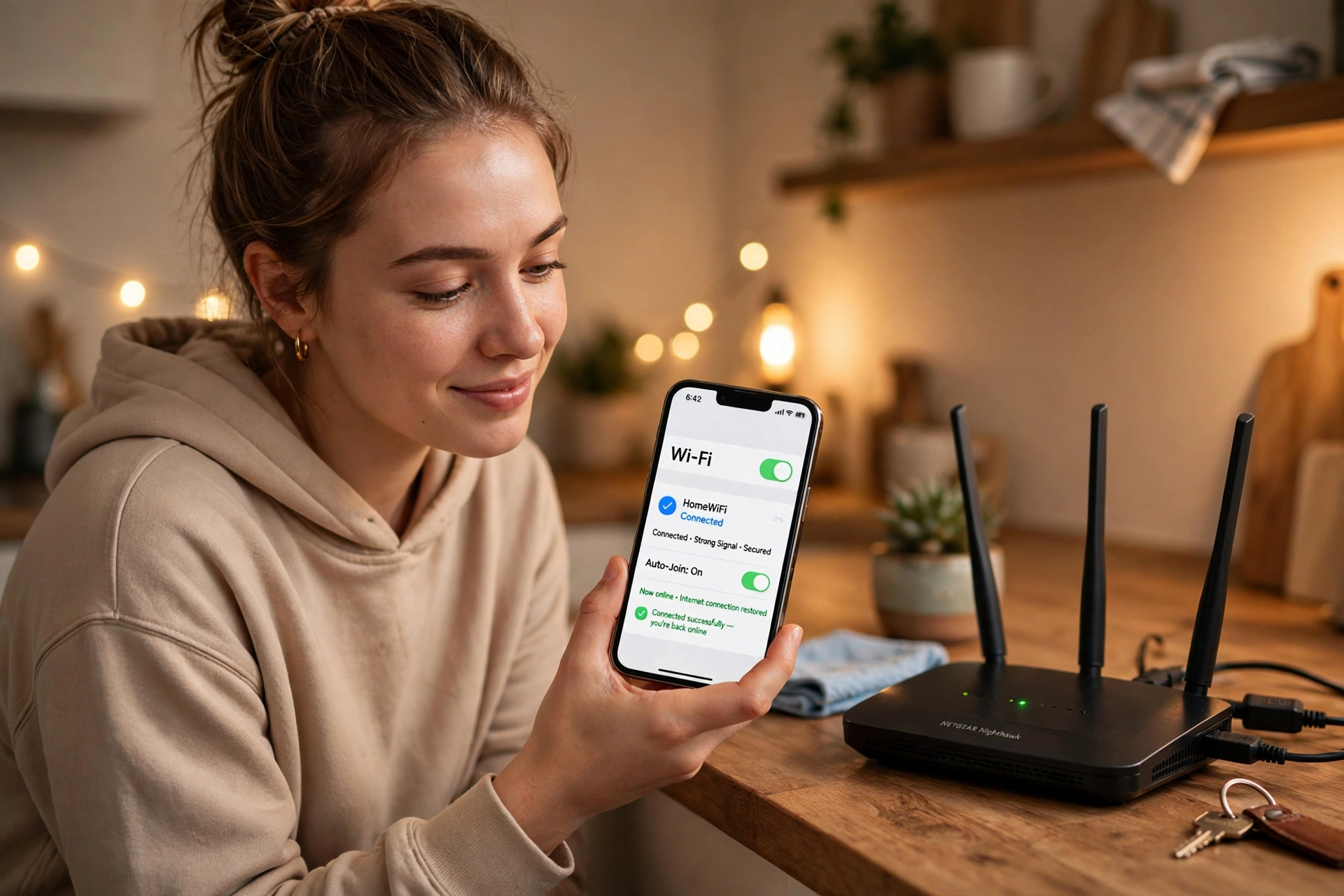
Switching networks, as shown above, is the quickest first step and the one many users report as the fix that finally lets setup move forward.
Community extras reported by users include restarting the phone and retrying setup on a stable connection, making sure the phone has a strong signal before starting again, and avoiding repeated setup attempts on a weak Wi-Fi network. Treat these as extras, not replacements for the official steps above, and stop if anything asks you to erase the phone.
Should You Update to One UI 9?
If your S26 Ultra is already on One UI 9 and working, there is no need to panic. If you are stuck on setup, work through the official workarounds first and avoid a factory reset until a fix is confirmed for your case, because a reset will not necessarily solve a WebView loading problem and it can put your data at risk. If you have not updated yet and setup is a concern, wait for Samsung’s patch or update only when you have time, a stable connection, and a recent backup.
Frequently Asked Questions
Why is my Galaxy S26 Ultra stuck on the setup screen after One UI 9?
Samsung has confirmed a bug in which Android System WebView fails to load the Samsung account policies page during setup, leaving the setup flow unable to continue.
Will I lose my data if I use these fixes?
No. Switching networks, updating WebView, accepting terms on the Samsung website, and signing out and back in are designed to avoid data loss. That is why they are preferable to a factory reset.
What if switching networks does not work?
Try updating WebView and your browser, then accept the Samsung account terms on another device before returning to setup. Combining the steps, rather than repeating just one, gives setup the best chance to proceed.
Is a factory reset the answer?
Not as a first step. A factory reset may not fix a WebView loading issue, and it erases data. Try Samsung’s official workarounds first, and contact Samsung support if the phone remains stuck.
When will Samsung fix this properly?
Samsung has acknowledged the bug, but a permanent patch timeline can vary by model and region. Keep WebView, your browser, and One UI updated, and use the workarounds above in the meantime.
Bottom line: A stuck setup screen is stressful, but it is a known One UI 9 issue with known workarounds. Switch networks, update WebView, accept the terms online if needed, and sign back in — and hold off on a factory reset until those steps have been tried.
