


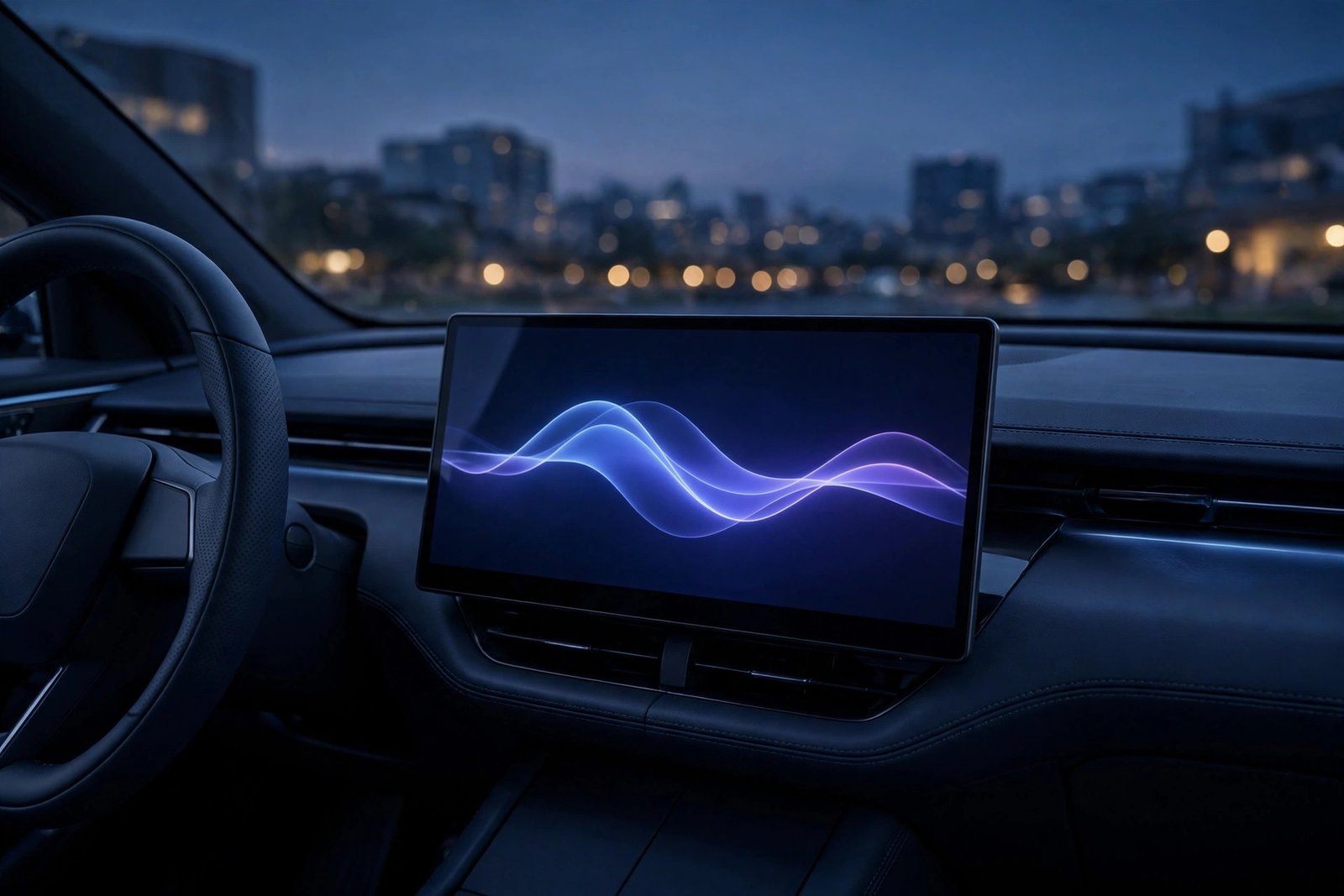
Google’s AI assistant has finally arrived on Apple’s dashboard. On 11 November 2026, Google began rolling out the Gemini app for Apple CarPlay, letting iPhone owners hold hands-free, back-and-forth conversations with Gemini Live from their car’s screen. It is a small icon with large implications: for the first time, Google’s conversational AI sits right next to Siri on Apple’s own in-car platform, and it can reach into your Gmail and Calendar in ways Siri simply cannot.
The rollout is global and covers every language Gemini Live supports, according to Google — but it is phased, so the icon may not appear on your dashboard on day one. This guide covers what Gemini on CarPlay actually does, how to set it up, what it cannot do yet, and whether it is worth switching from Siri for your drives.
What happened on 11 November
Google announced the launch on its official blog under the headline “Talk it through with Gemini, now on Apple CarPlay”, and the rollout began the same day. The Gemini app appears as its own icon on the CarPlay home screen. Tap it, and Gemini Live starts a voice conversation — no typing, no picking up the phone.
This is not Gemini’s first step into the car. Google had already brought Gemini to Android Auto and to cars with Google built in, and some Gemini features were reachable inside Google Maps on CarPlay. What is new is the full, standalone Gemini app on CarPlay, with the complete Gemini Live conversation experience.
It is also, notably, a late arrival. As 9to5Mac pointed out, Gemini was the last of the major AI chatbots to get a dedicated CarPlay app — ChatGPT, Copilot, Claude, Perplexity, Meta AI and Grok all got there first. Google is now closing that gap in one move, and doing it with deeper access to its own services than any of those rivals can offer.
What Gemini Live does on your car’s screen
The interface is deliberately simple. 9to5Google, which saw the new interface at launch, describes a clean waveform that shows when Gemini is listening, thinking and responding, with “End” and “Mute” buttons in the top-left corner. There are no menus to navigate and nothing to read while you drive — Google says it designed “Gemini on CarPlay to work like a conversational driving companion that minimizes distraction.”
Like Gemini Live on your phone, you can interrupt a response mid-sentence to add a detail, change the subject or pause. When you open the app you can pick up where you left off with a recent chat or start a fresh conversation, and every CarPlay conversation syncs back to the Gemini app on your iPhone, so anything discussed in the car is in your chat history when you park.
Google’s own examples of what to ask show the range it is aiming for:
- Get ready for the day ahead. Use the morning commute to check your calendar and prepare for meetings. Try: “What does my day look like?” or “Help me prep for my 10am with the design team.”
- Talk through your inbox. Because Gemini connects with Google Workspace apps like Gmail and Google Calendar, you can ask for a daily brief, catch up on unread emails, get summaries of long threads and talk through a quick reply using only your voice. Try: “Give me my daily brief for today,” or “Catch me up on my unread emails.”
- Explore local spots. Ask for recommendations near where you are heading, from a quick lunch stop to the backstory on a local landmark. Try: “What’s a quick lunch spot in downtown Austin that’s easy to get in and out of?”
- Brainstorm and rehearse out loud. Google pitches the quiet cabin as a place to think out loud — practise a presentation, prepare for a tough conversation or break down a topic. Try: “Let’s roleplay my Q4 pitch — act as a skeptical VP and challenge my strategy,” or “Break down how solid-state EV batteries work in simple terms.”
The Gmail and Calendar connection is the real differentiator. Siri can read your messages and calendar, but it cannot summarise a long email thread or help you draft a reply in natural conversation. Gemini can — because it is the same assistant that already has that access on your phone.
How to set up Gemini on CarPlay
Setup takes a few minutes, but there is one prerequisite that is easy to miss: Google says you must have used Gemini Live on your iPhone at least once before it will work through CarPlay. Do that first, while parked.
- Update the Gemini app. Open the App Store on your iPhone and update Gemini to the latest version. Google says the CarPlay support ships in the latest release.
- Allow microphone access. Gemini Live needs the microphone to hear you. If you declined it earlier, go to Settings, find the Gemini app and switch the microphone on.
- Use Gemini Live once on your phone. Open the Gemini app, start a Live conversation and say a few words. This activates the feature for your account.
- Plug in and look for the icon. Connect your iPhone to your car as usual — wired or wireless CarPlay both work — and look for the Gemini icon on the CarPlay home screen. Tap it to start talking.
If the icon is not there yet, do not reinstall the app or reset your phone. Google is rolling the feature out in phases, and 9to5Mac reported that the app update had not even appeared for everyone on the morning of the announcement. The icon should appear once the rollout reaches your account and your app is up to date.
Requirements, limits and the fine print
Before you get excited, here is what Google has — and has not — said about who gets it and what it can do:
- Who gets it: All Gemini users on iOS, globally, in every language Gemini Live supports. Google has announced no separate charge for the CarPlay feature, and it has not said a paid Gemini plan is required.
- Which cars: Google lists no compatible car models and no minimum iOS version. In practice, any car with CarPlay should work, since the app runs on the phone and projects to the dashboard — but Google has not confirmed this explicitly, and we have not tested it across head units.
- Daily Brief has extra rules. The daily brief feature must be switched on before it works in the car, and Google says it and certain other personalisation features are not available to users under 18, or to users in the European Economic Area and Nigeria.
- No completion date. Google gives a rollout start date — 11 November — but no date for when every user will have it. Availability may lag the announcement by days or longer depending on your region.
- Usage limits are unclear. Google has not said whether conversations held through CarPlay count towards any Gemini app usage limits. If you are on a free plan with capped usage, that is worth watching.
- It is voice-only by design. There is no typing interface in the car and no visual results to scroll through. That is the point — it is built to keep your eyes on the road — but it also means anything that needs a screen, like reading a long document, is better done on the phone.
Gemini vs Siri on CarPlay: should you switch?
The honest answer is that you do not have to choose. Both live on the same CarPlay screen, and each is better at different things.
Siri remains the better choice for anything tied to the iPhone itself: sending an iMessage, calling a contact, playing Apple Music, setting a reminder, or controlling HomeKit devices in your house. It is built into iOS, it works offline for basic commands, and it is a long-press away on the steering wheel.
Gemini’s advantage is conversation and Google services. It holds a natural back-and-forth without you repeating “Hey Siri” every turn, it can summarise your Gmail threads and calendar, it can brainstorm or rehearse with you, and it remembers the thread of a conversation across turns. If your work life runs on Gmail and Google Calendar, Gemini on CarPlay turns the commute into genuinely useful time in a way Siri cannot match.
The practical setup for most drivers is both: Siri for quick phone commands, Gemini for the longer conversations — the morning brief, the inbox catch-up, the thinking-out-loud sessions. The two assistants are not fighting for the same job.
The bigger picture: Google’s in-car AI push
The CarPlay launch did not happen in isolation. A day earlier, on 10 November, Google expanded its Gemini Intelligence system — the set of Gemini features built into Android devices — to the Pixel 10 line and the new Motorola Signature 27, which opens for US pre-order on 19 November. Task automation is also expanding to the UK, India and Japan. And Gemini Intelligence on Android Auto is set to gain proactive suggestions on Pixel phones soon, according to Google — though the company has given no date beyond “soon”.
The contrast on the Android side is instructive. While Gemini races ahead, the long-awaited Android Auto redesign — the Material 3 Expressive refresh codenamed Cielo, announced at Google I/O in May — still has not arrived. XDA Developers reported on 17 November that the redesign looks delayed to early 2027: it has not even entered beta, despite references to it appearing in Android Auto 18.0, which started rolling out in early November. The last full Android Auto redesign, Coolwalk, launched back in 2023.
So Google’s in-car strategy is now two-speed: Gemini everywhere, on every platform it can reach — including Apple’s — while the visual overhaul of its own Android Auto waits. For drivers, that means the assistant in the car is changing faster than the dashboard around it. The TVS iQube is getting Android Auto on its scooter display, and even Porsche’s new PCM infotainment system is built around voice interaction — the car industry has decided the voice assistant is the interface now. Gemini arriving on CarPlay is the clearest sign yet that no platform, not even Apple’s, is exempt.
Bottom line
Gemini Live on Apple CarPlay is a genuinely useful addition for iPhone drivers, especially anyone whose day runs on Gmail and Google Calendar. It is free to use, it is rolling out globally, and setup takes minutes once the update reaches you. Its limits are real — phased rollout, no confirmed car list, Daily Brief restrictions in some regions — but none of them is a reason to skip it. Update the Gemini app, try one Live conversation on your phone, and the next time you drive, ask it what your day looks like. That is the moment it clicks.
What is Gemini Live on Apple CarPlay?
Gemini Live on Apple CarPlay is the Gemini app running on Apple’s in-car display. It lets iPhone users hold hands-free, back-and-forth voice conversations with Gemini Live from the car’s screen, with a simple waveform interface, End and Mute buttons, and all chats syncing back to the Gemini app on the phone. Google began rolling it out globally on 11 November 2026.
How do I get Gemini Live on Apple CarPlay?
Update the Gemini app to the latest version from the App Store, allow microphone access, and use Gemini Live at least once on your iPhone — Google lists this as a requirement. Then connect your iPhone to your car and tap the Gemini icon on the CarPlay home screen. If the icon is missing, the phased rollout may not have reached your account yet; wait for the app update rather than reinstalling.
Is Gemini on CarPlay free?
Google has announced no separate charge for the CarPlay feature, and the rollout covers all Gemini users on iOS in every supported Gemini Live language. Google has not said a paid Gemini plan is required, and has not said whether CarPlay conversations count towards any Gemini app usage limits.
What can Gemini do on CarPlay that Siri can’t?
Gemini holds natural multi-turn conversations without repeating a wake word, summarises Gmail threads and gives a daily brief from your Google Calendar, and can brainstorm, rehearse presentations or explain topics out loud. Siri remains better for iPhone-native tasks like iMessages, calls, Apple Music and HomeKit controls.
Why can’t I see the Gemini icon on CarPlay yet?
The rollout is phased. Google began it on 11 November 2026 but gave no completion date, and 9to5Mac reported the app update had not appeared for everyone on launch morning. Make sure the Gemini app is updated to the latest version and that you have used Gemini Live once on your phone, then check again after a few days.
Sources: Google, “Talk it through with Gemini, now on Apple CarPlay” (11 November 2026); 9to5Google, “Google rolling out Gemini app for CarPlay” (11 November 2026); 9to5Mac (11 November 2026); XDA Developers, “I’ve been waiting months for Android Auto’s big redesign, and Google still hasn’t delivered” (17 November 2026).
