


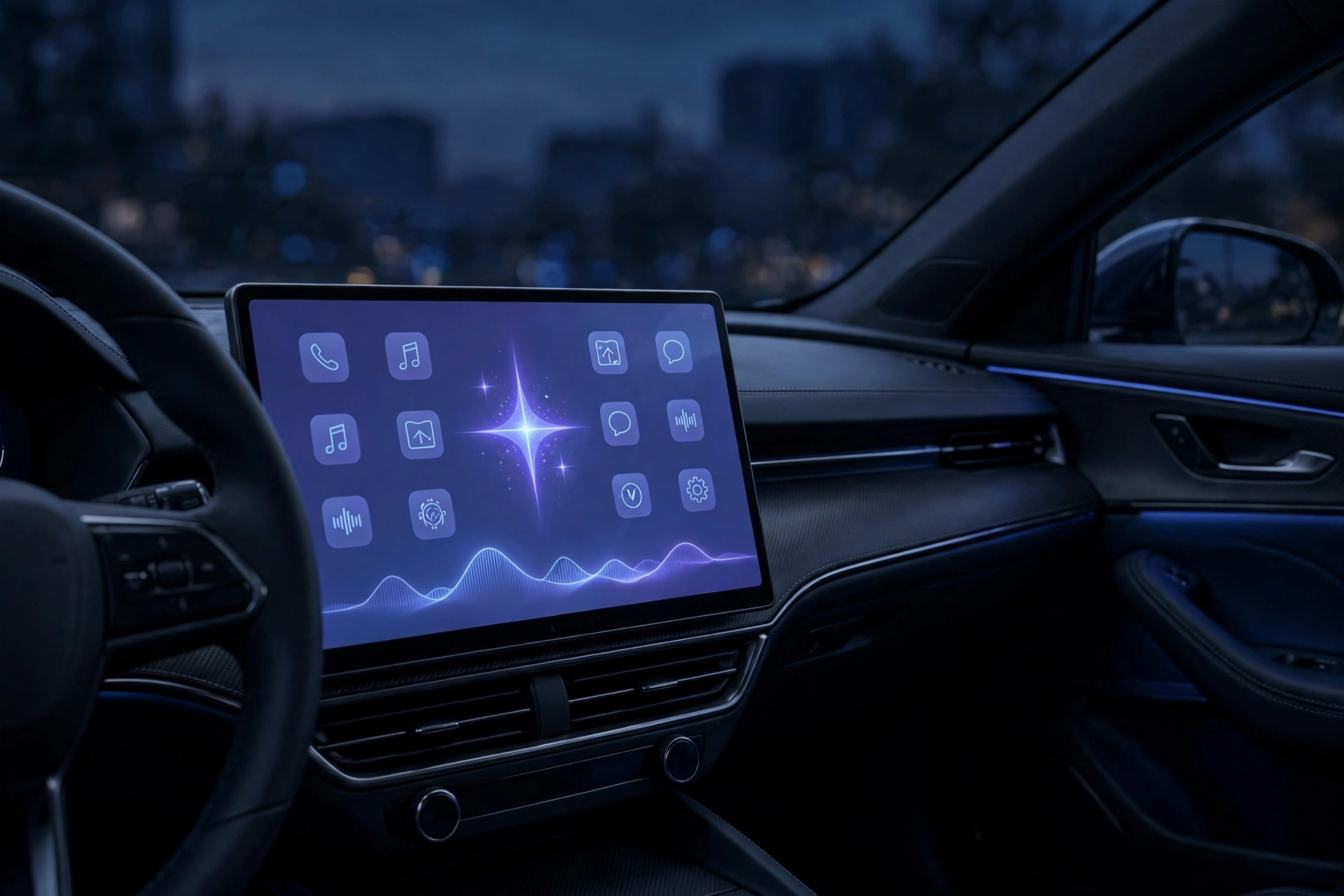
Google’s Gemini AI now has its own button on your car’s dashboard. The standalone Gemini app started rolling out on Apple CarPlay on November 11, 2026, and it brings hands-free Gemini Live voice conversations to the car display — no subscription needed. If you drive with an iPhone, here is how to set it up and what it can actually do.
This is not the Gemini feature inside Google Maps on CarPlay that arrived in October. That version lives inside navigation. This is a separate Gemini app with its own icon on the CarPlay home screen and side rail, and it is rolling out globally to all Gemini users on iOS, in every language Gemini Live supports.
Key Takeaways
- What happened: Google began rolling out a standalone Gemini app on Apple CarPlay on November 11, 2026.
- What it does: Hands-free, back-and-forth Gemini Live voice conversations from the car display, with chats synced to your iPhone.
- Cost: Free — it works for all Gemini users on iOS, not just paid plans.
- Setup: Three things on your phone first — latest Gemini app, microphone permission, and one Gemini Live chat on the phone.
- Catch: It is a staged rollout, so the icon may take a few days to appear. And Gemini cannot control your music, air conditioning, or other CarPlay apps.
Set Up Gemini on CarPlay in 5 Steps
Google lists three things to do on your phone before you drive, then two steps in the car:
- Update the Gemini app on your iPhone. Open the App Store and update Google Gemini to the latest version. CarPlay support needs the newest build — if the app is out of date, the CarPlay icon will not appear.
- Allow microphone access. Gemini Live is a voice conversation, so the app needs the microphone. Go to Settings on your iPhone, find the Gemini app, and make sure microphone access is switched on.
- Use Gemini Live on your phone at least once. Open the Gemini app and start one Live voice conversation on the iPhone itself. This is a hard requirement from Google — the CarPlay app will not work until you have done this once.
- Connect your iPhone to CarPlay. Plug in or connect wirelessly to your car as usual. The Gemini icon should appear on the CarPlay home screen and in the side rail.
- Tap the Gemini icon and start talking. You can start a new conversation or pick up a recent one. Gemini Live runs as a back-and-forth voice chat — you can interrupt, add details, or change topics mid-conversation, the same way you would talk to a passenger.
Everything you say in the car syncs with the Gemini app on your iPhone, so summaries, notes, and ideas from the drive are waiting in your chat history once you park.
What Gemini Can Do in the Car
The CarPlay app is built around conversation, not car controls. The most useful things it offers:
Hands-free Gemini Live. Natural, spoken conversations with interruptions and follow-ups. Ask it to summarise your emails, check your calendar, brainstorm an idea, or explain something on the drive — all without touching the phone.
Resume chats across devices. A chat started on your iPhone before the drive can be picked up on the CarPlay display and continued on the phone afterwards. The conversation keeps its context instead of starting over.
Daily Brief. Gemini can present a morning summary from your calendar and inbox during the commute — but you have to switch Daily Brief on first. Note that Daily Brief and some other personalisation features are not available to users under 18, or in the European Economic Area and Nigeria.
Workspace connections. Because Gemini connects to Gmail and Google Calendar, it can pull in your schedule and messages while you drive. On a work or school account, Gemini Live can currently use only Google Calendar, Keep, and Tasks — so do not count on the Gmail features there.
What Gemini Cannot Do on CarPlay
Set expectations before you drive. According to Android Authority, the CarPlay integration does not get deep permissions over the vehicle, so Gemini cannot change your music, adjust the air conditioning, or operate other CarPlay apps. It is a voice assistant on the display, not a car controller. If you need to change a song or the temperature, use the usual CarPlay controls.
Gemini Icon Not Showing? Try This
The rollout began on November 11 and is staged, so it may take a few days to reach your phone even if everything is set up correctly. If the icon has not appeared: check the Gemini app is fully updated in the App Store; confirm microphone permission is on for Gemini; make sure you have used Gemini Live at least once on the phone; while parked, check which apps appear on CarPlay Home under Settings > General > CarPlay > [your vehicle] > Customize. If Gemini appears under More Apps, add it there and reconnect. If none of that works, wait a day or two — the rollout is still reaching accounts in waves, and Google has not published an account-by-account schedule.
Frequently Asked Questions
How do I set up Gemini on Apple CarPlay?
Update the Gemini app on your iPhone to the latest version, allow microphone access, and use Gemini Live on the phone at least once. Then connect your iPhone to CarPlay and tap the Gemini icon on the dashboard display to start a new chat or resume a recent one.
Do I need a paid Gemini plan for CarPlay?
No. Google says the Gemini app on CarPlay is rolling out to all Gemini users on iOS, in every language Gemini Live supports. No paid plan is mentioned.
What can Gemini do on Apple CarPlay?
It runs hands-free Gemini Live voice conversations from the car display, lets you resume chats started on your phone, and can present a Daily Brief from your calendar and inbox if switched on. Chats sync back to the Gemini app on your iPhone.
Why is the Gemini icon not showing on CarPlay?
The rollout is staged and may take a few days to reach your phone. Check the app is updated, microphone permission is on, and you have used Gemini Live once on the phone. You can also check Settings > General > CarPlay > [your vehicle] > Customize to add Gemini from More Apps.
Can Gemini control music or air conditioning on CarPlay?
No. The integration does not have deep permissions over the vehicle, so Gemini cannot change music, adjust the air conditioning, or control other CarPlay apps. It is a voice assistant on the display, not a car controller.
Sources: AndroidPure, AppleMagazine, MacObserver, FoneArena (Nov 11–12, 2026).
